codex-ppt-skill
GPT-Image-2 PPT Generator Skill for Creating Image-Based PowerPoint Presentations in Codex and Other Skill-Compatible Agents
原始仓库简介 · 中文摘要待补充 · agent-skills / ai-ppt / claude-code / codex / gpt-image-2 / powerpoint
README / 项目原文
Codex PPT Skill






一个面向 Codex 的 PPT 生成 skill,也可在 Claude Code、OpenClaw、Hermes Agent 等支持 SKILL.md 的 agent 中使用;在这些非 Codex 环境中通常需要配置 gpt-image-2.5-flare、第三方生图 API 或 OpenAI 兼容格式的生图接口。它把文章、报告、论文、课程笔记等内容转换成“整页图片式”的演示文稿:先规划大纲和视觉风格,再生成每页幻灯片图片,最后用本地脚本组装为 .pptx。
https://github.com/user-attachments/assets/ad0fa884-87e4-4528-8030-f2dd0211693c
赞助
 |
感谢 Atlas Cloud 赞助本项目。AtlasCloud 是多模态 AI 推理平台,提供统一 API 接入图片生成、视频生成和大语言模型等能力;本 skill 已支持通过现有 API key、base URL 和模型名配置接入 AtlasCloud 的 GPT Image 2 生图和编辑图接口,按量计费,开箱即用。完整模型列表可查看 Atlas Cloud 模型页。 |
 Codia NoteSlide |
让生成的幻灯片变得可编辑。将 Codex PPT 生成的幻灯片图片、PDF 或 NotebookLM 导出的演示文稿转换为可编辑 PowerPoint。转换快、价格亲民、还原效果好,适合批量图片转 PPT 和高频交付。 体验 Codia NoteSlide → |
温馨提示
[!TIP] 本 skill 负责从文章、报告、大纲或想法生成图片式 PPT,适合强视觉表达,但页面元素本身不可直接编辑。如果你需要进一步转换成可编辑 PPT,可以在生成完成后尝试使用 image-to-editable-ppt-skill 进行转换。
关于
codex-ppt和image-to-editable-ppt这两个技能的详细介绍,参见 skill_duo_intro.pdf。该 PPT 由codex-pptskill 生成,提示词为:“请分别阅读 Codex PPT和 Image to Editable PPT 这两个技能的内容,然后用 Codex PPT 帮我做一个PPT吧,20页,每个技能的介绍10页。”另外,关于这个 PPT Skill 设计和调优的实践经验,可以看这篇文章:2000 个 GitHub Star 换来的经验:好的 AI Skill 是调出来的,不是写出来的。
[!NOTE] 想查看更多用户用这个 skill 做出的 PPT 效果,可以前往置顶 Issue 的案例展示区:欢迎分享 codex-ppt 使用案例和 PPT 效果。
这个 skill 主要给大家提供一个还不错的 PPT 生成流程。为了尽量通用,它的流程设计会稍微复杂一些;复杂也会带来不稳定性或者冗余性。比如它同时兼容 Codex 内置生图和 API/CLI fallback 生图,也会兼容有无子 agent 可用这两种情况,但大部分人日常使用时其实只会固定走其中一条路线。
建议大家在走通自己常用的路线之后,让 AI 帮你改一下这个 skill,把你的偏好固定下来,省得每次都重新选择。比如固定使用内置生图或固定使用某个 API,固定是否使用子 agent,固定常用输出目录、风格、页数节奏等。
另外,如果你在做 PPT 的过程中遇到了自己喜欢的版式或排版,无论是这个 skill 做出来的,还是从别的地方找到的 PPT 风格图片,都可以让 AI 保存到你的个人风格库(~/.codex-ppt-skill/references/)里,逐步沉淀自己的风格。个人风格库存放在 skill 安装目录之外,更新或重装 skill 都不会丢失。Skills 本质上是非常个性化的流程,鼓励大家在使用这个 skill 的基础上,按自己的偏好持续调优,让它更适配自己的工作流。
关于 skills 如何设计和使用,可以参考 good-skill-design.pptx。这个 PPT 也是用本 skill 做的,采用的是手绘技术解释风;内容基于 Claude 在设计 skills 方面的最佳实践文章 The Complete Guide to Building Skills for Claude。祝大家玩得愉快!
特点
- 多 agent 可用:支持 Codex、Claude Code、OpenClaw、Hermes Agent 等支持
SKILL.md的环境;最推荐在 Codex 中使用,优先走内置生图和编辑图能力。 - 第三方生图供应商接入:支持 OpenAI 兼容接口、AtlasCloud、
base URL和自定义模型名配置,方便通过 API/CLI fallback 使用gpt-image-2.5-flare或兼容模型。 - 稳定的阶段化流程:先确认大纲、页数、视觉风格、生图后端和样张,再进入整套生成,降低一次生成完整 PPT 时的返工和偏航。
- 不是无脑生成:会先引导你确认
outline.md、每页要点、风格方向和样张效果,再按确认后的方案继续。 - 低门槛输入:文章、报告、论文、课程笔记、Markdown、大纲、PDF、Word 等材料都可以作为起点。
- 内置 12 种 PPT 风格参考:包括清爽专业、科研答辩、党政红、教学课件、电子墨水杂志、手绘技术解释、仪表盘、麦肯锡等;不会写提示词也可以先从内置风格开始,尤其推荐手绘技术解释风。
- 支持自定义风格复刻:可以上传喜欢的图片、PDF 或 PPT/PPTX,让 agent 先分析配色、版式、字体和视觉元素,再按该风格生成新 PPT。
- 可沉淀个人风格库:生成满意后,可以把当前风格保存到个人风格库(
~/.codex-ppt-skill/references/),下次直接复用;风格库存放在 skill 安装目录之外,更新 skill 不会丢失,同名时个人风格优先于内置风格。 - 多 agent 并发生成:样张确认后,支持一个子 agent 负责一页,并对文字清晰度、风格一致性和内容完整性做自检,发现问题及时返修。
- 支持指定图片插入:可以要求某一页必须放入论文原图、实验结果图、截图、架构图等素材,并让页面围绕这些图片适配主题和版式。
- 自动生成演讲稿:会生成
speech.md,并在组装 PPTX 时写入每页备注,方便直接演示或二次修改。
生成效果
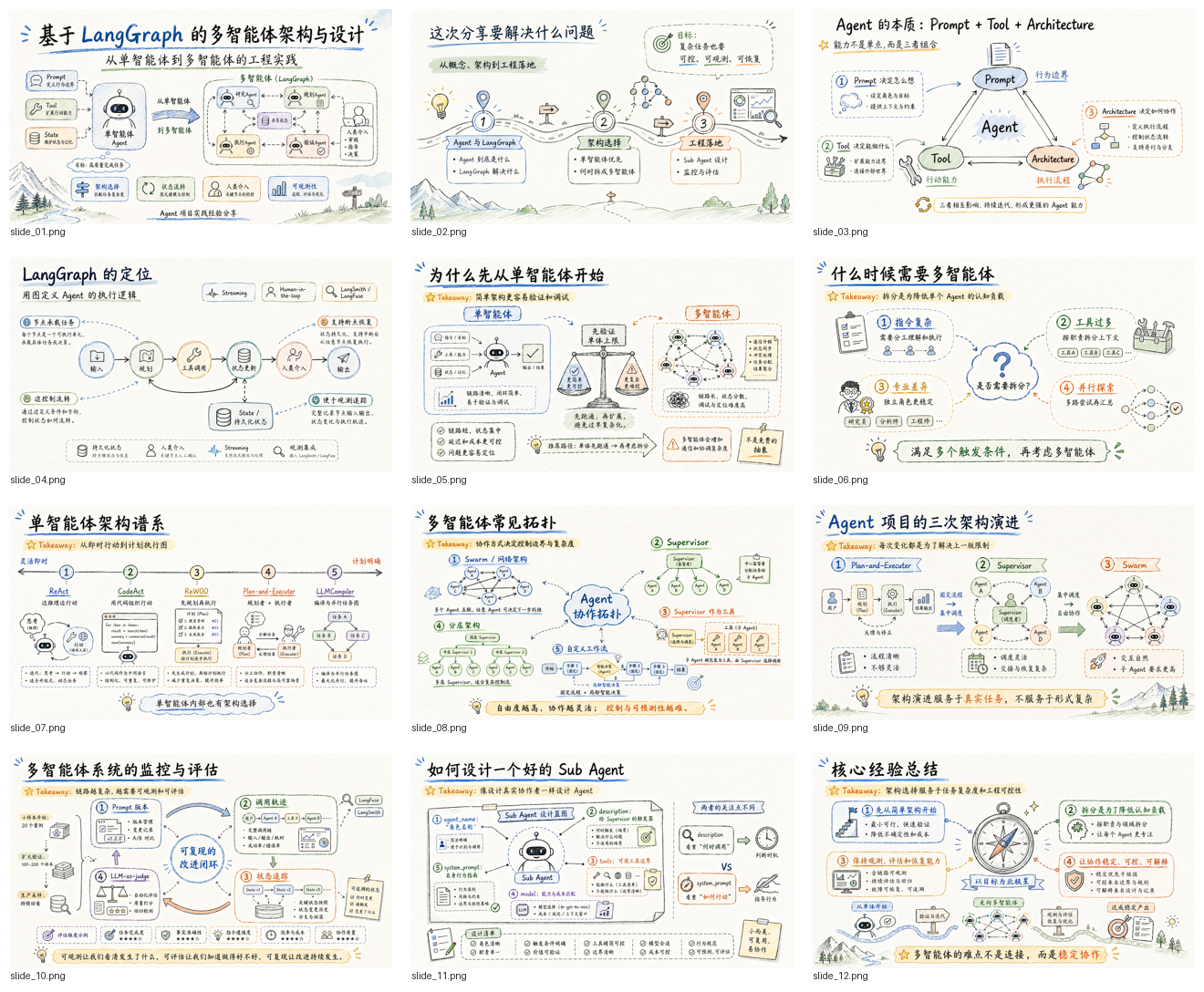
下面是一套技术分享 PPT 的生成效果示例。每页都是由 gpt-image-2 生成的完整 16:9 幻灯片图片,再由本地脚本组装为 PPTX。
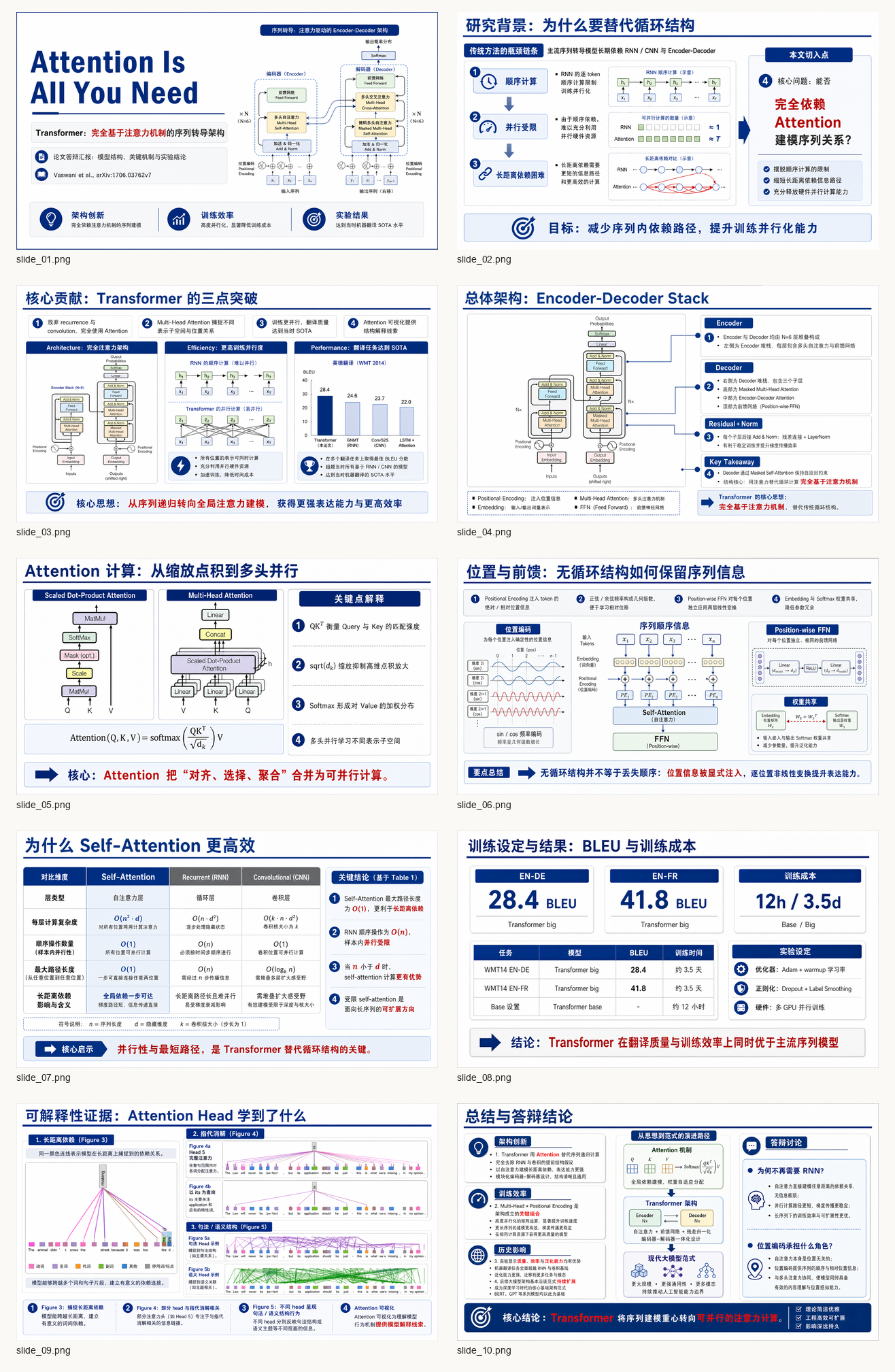
下面是一套论文答辩风案例,来源于论文 Attention Is All You Need。它展示了如何在指定页中插入论文原始图片作为输入素材,例如模型架构图、attention 模块图和 attention 可视化图,并围绕这些图片生成统一风格的 PPT(见 Issue #14)。
风格示例
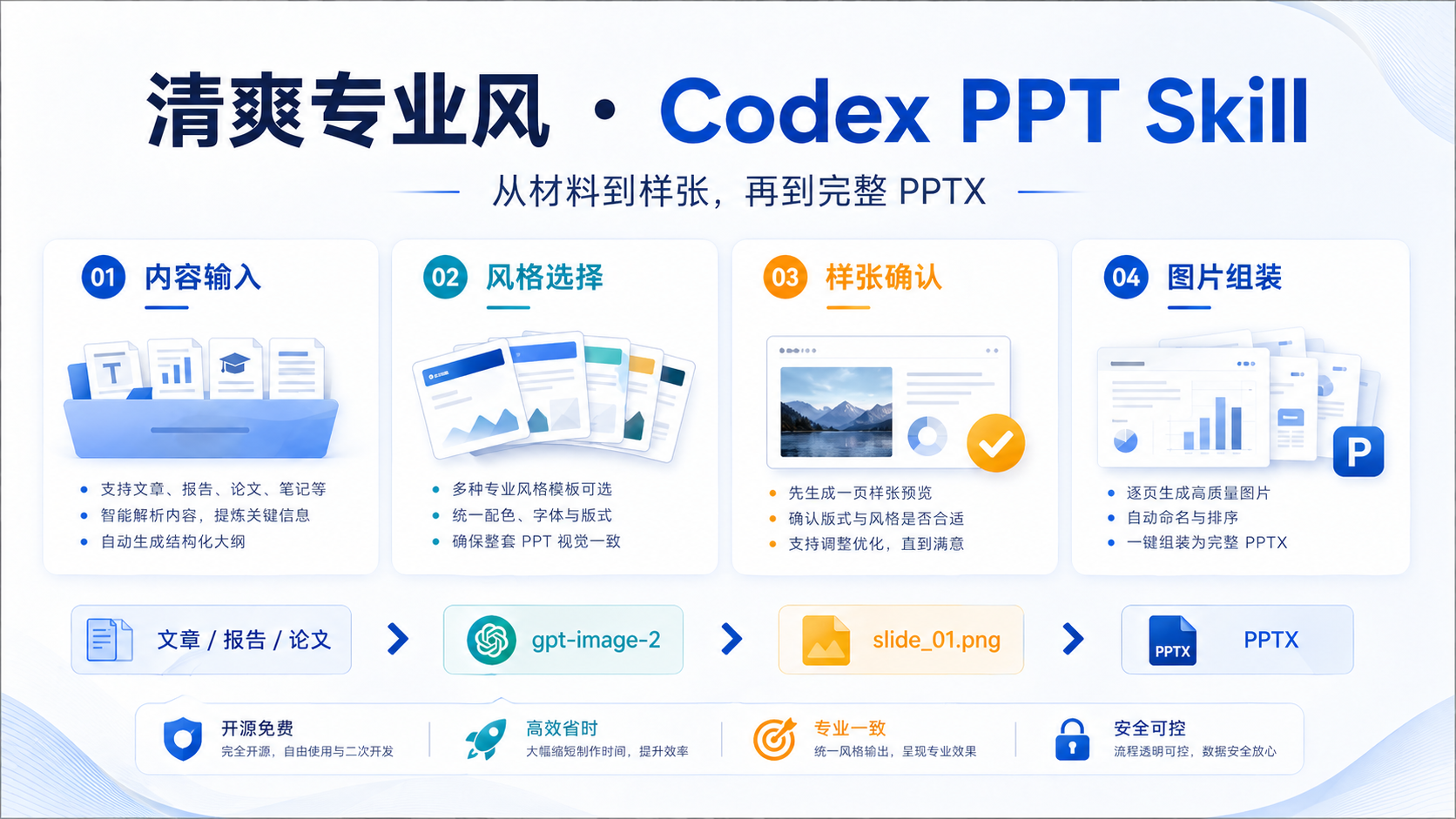
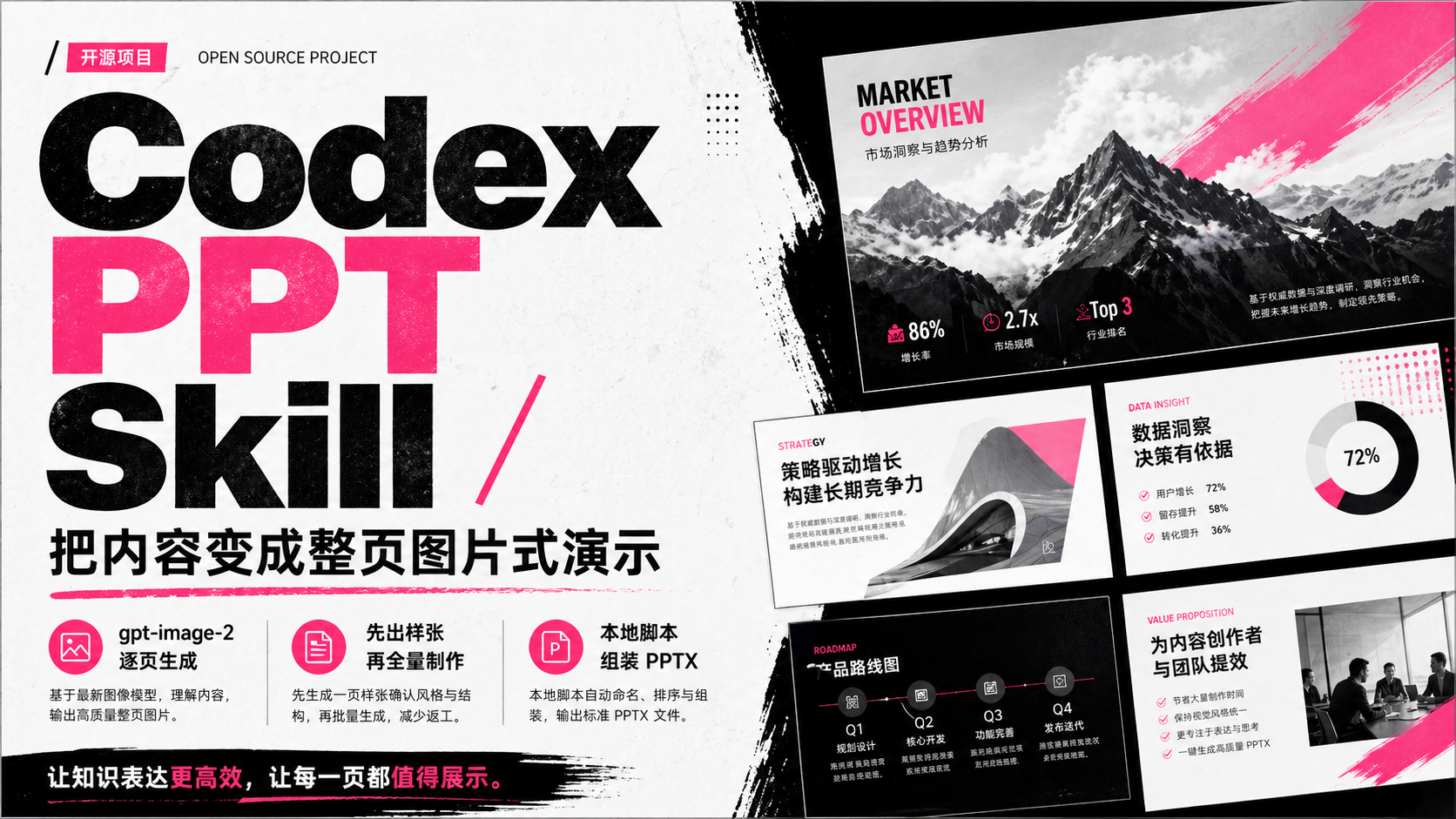
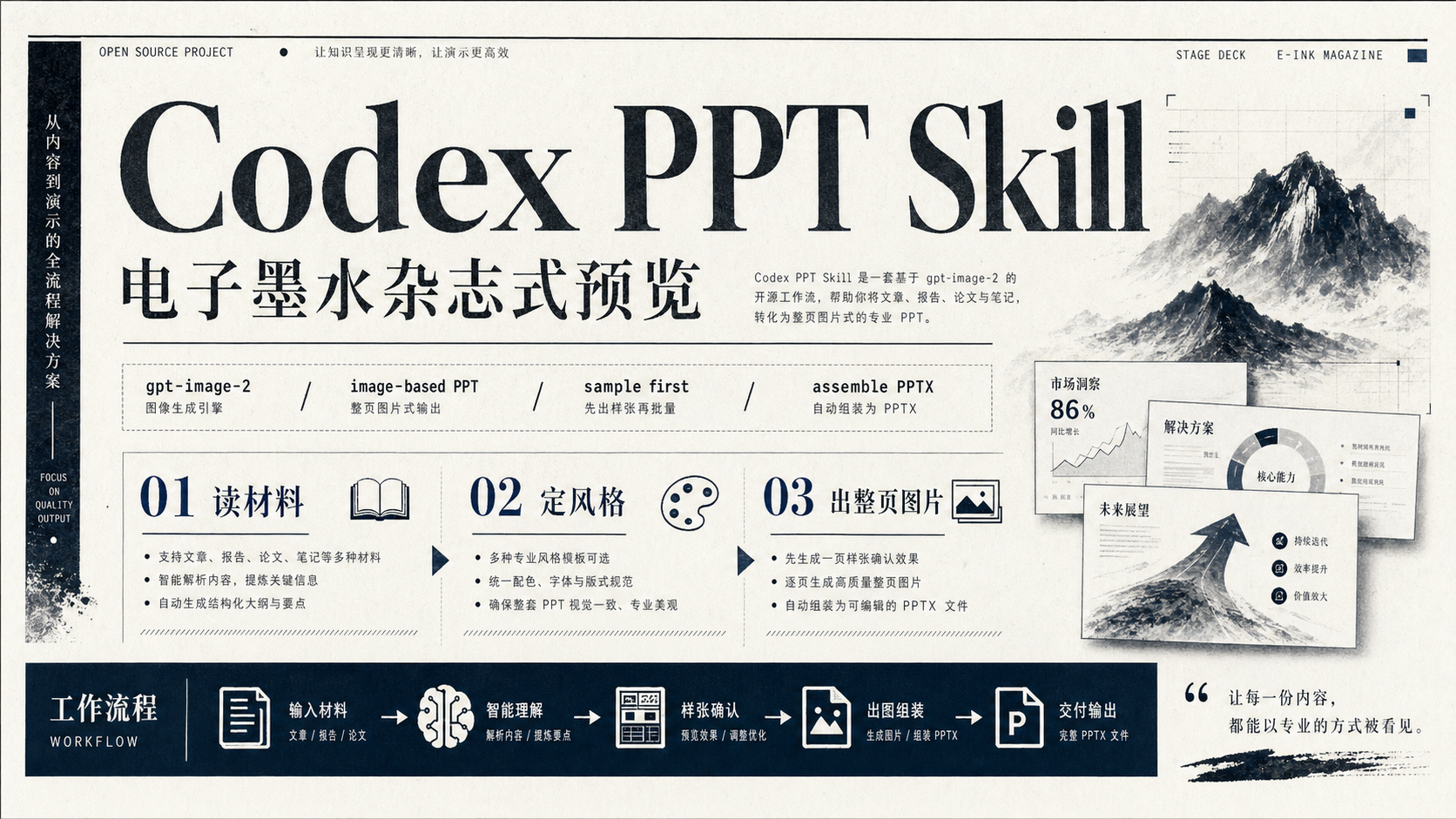
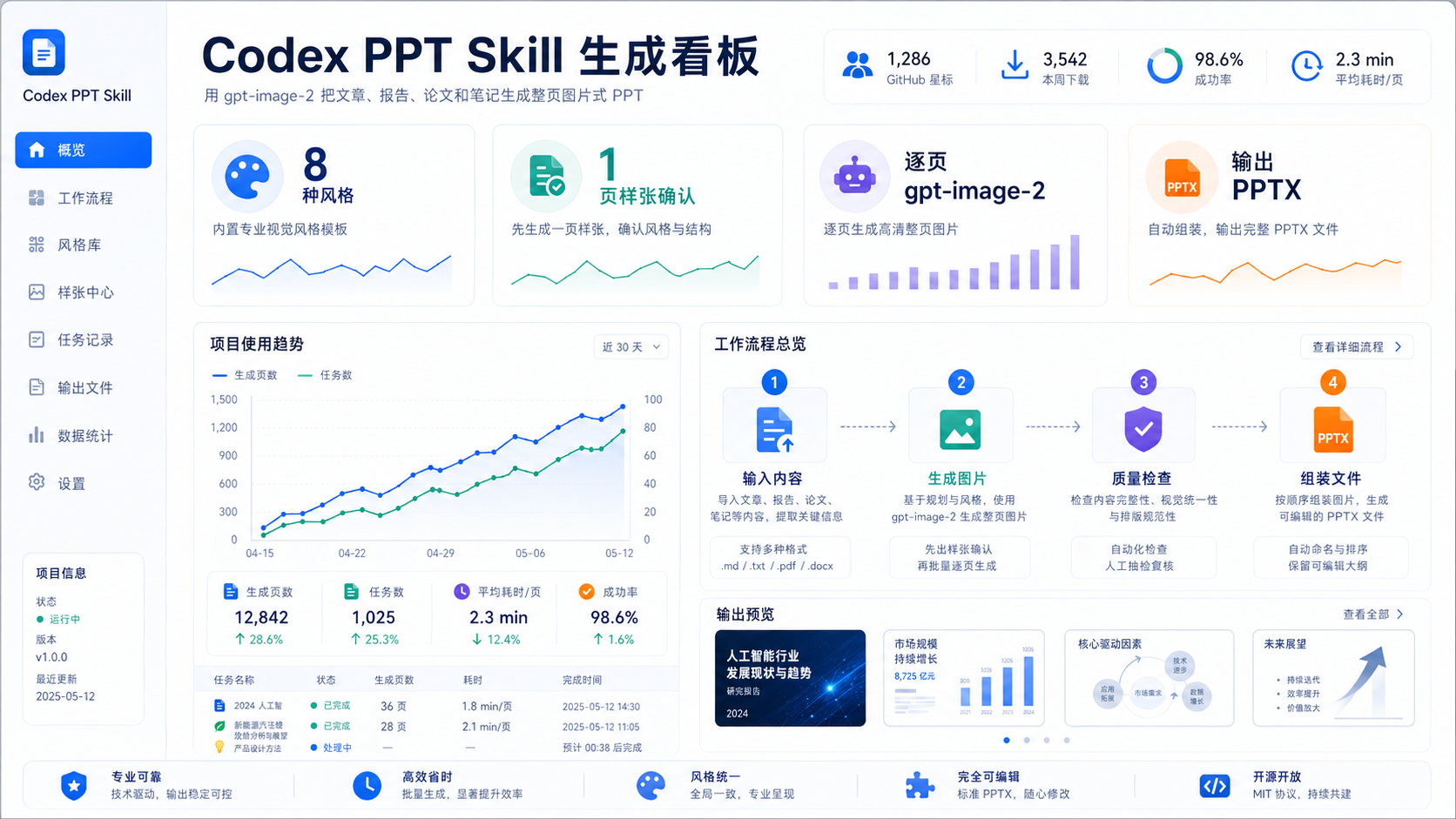
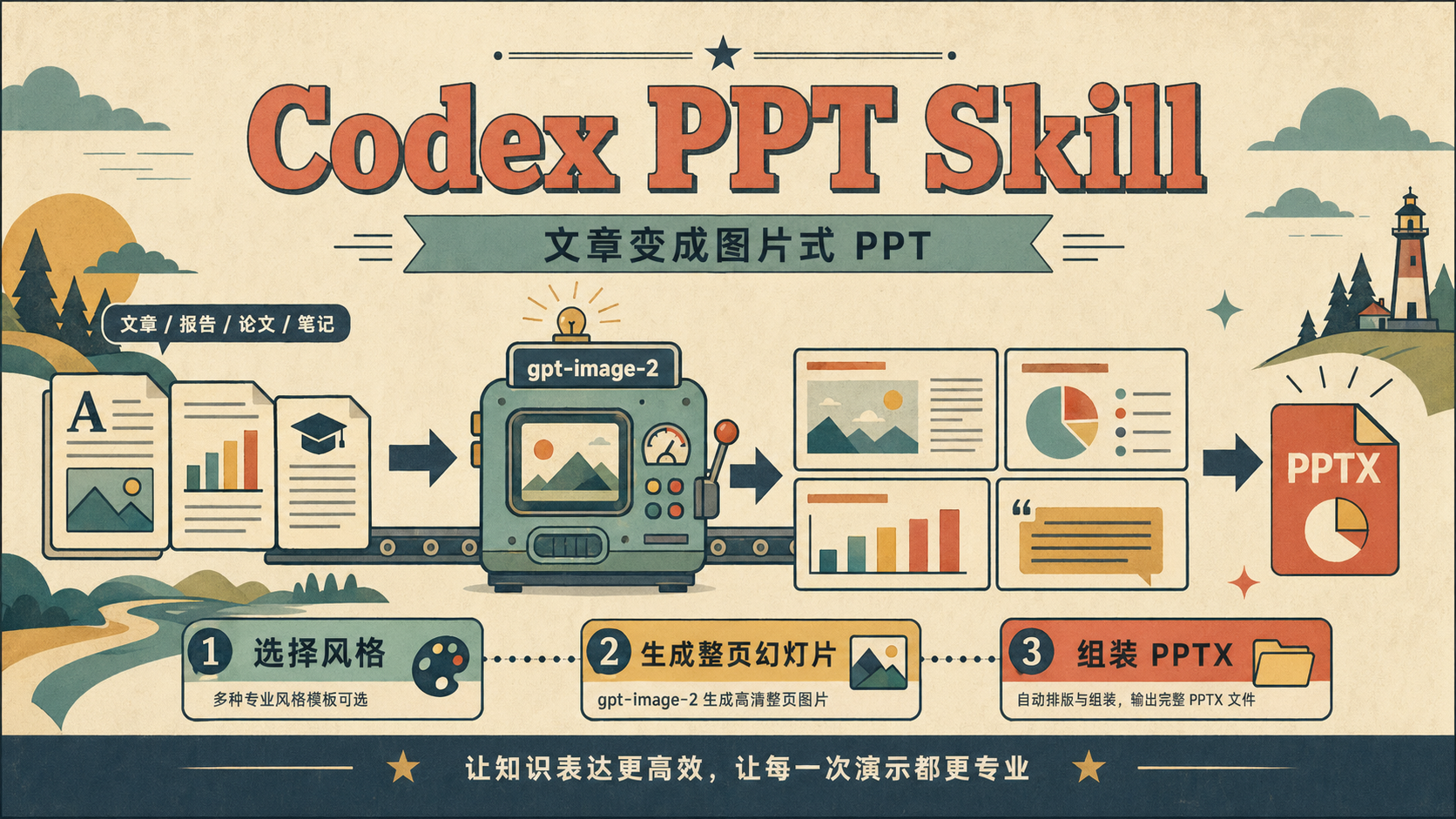
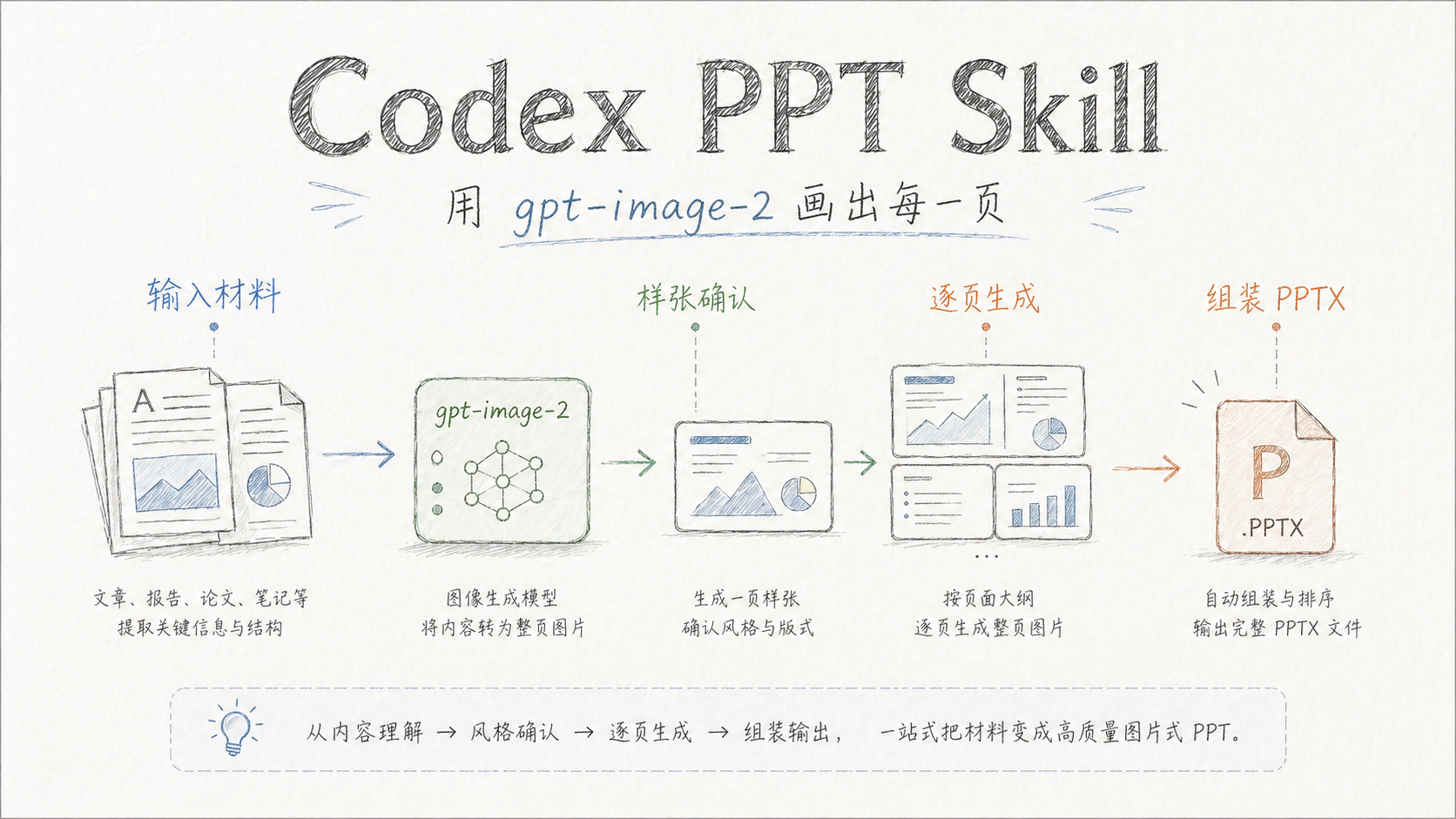
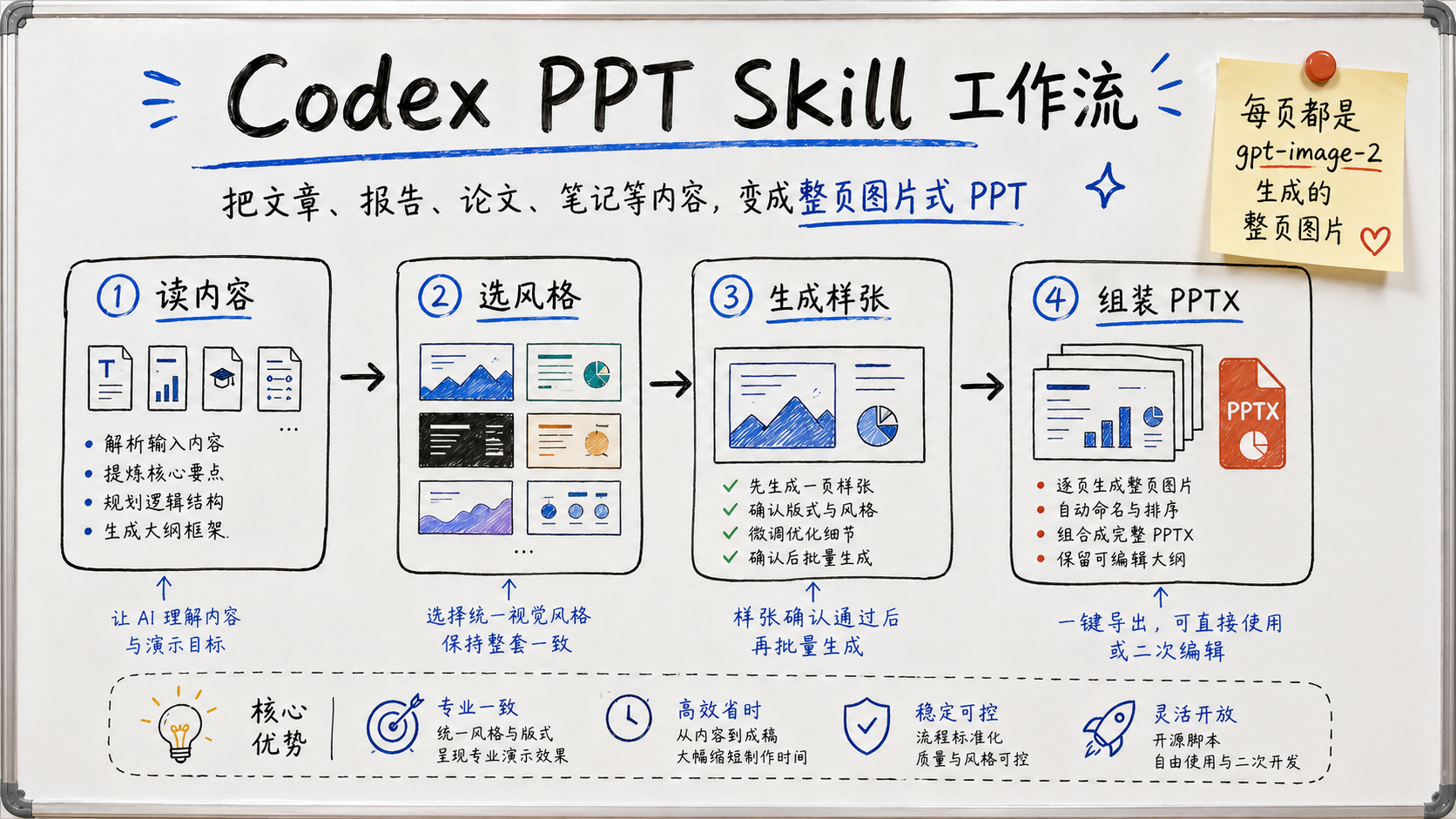
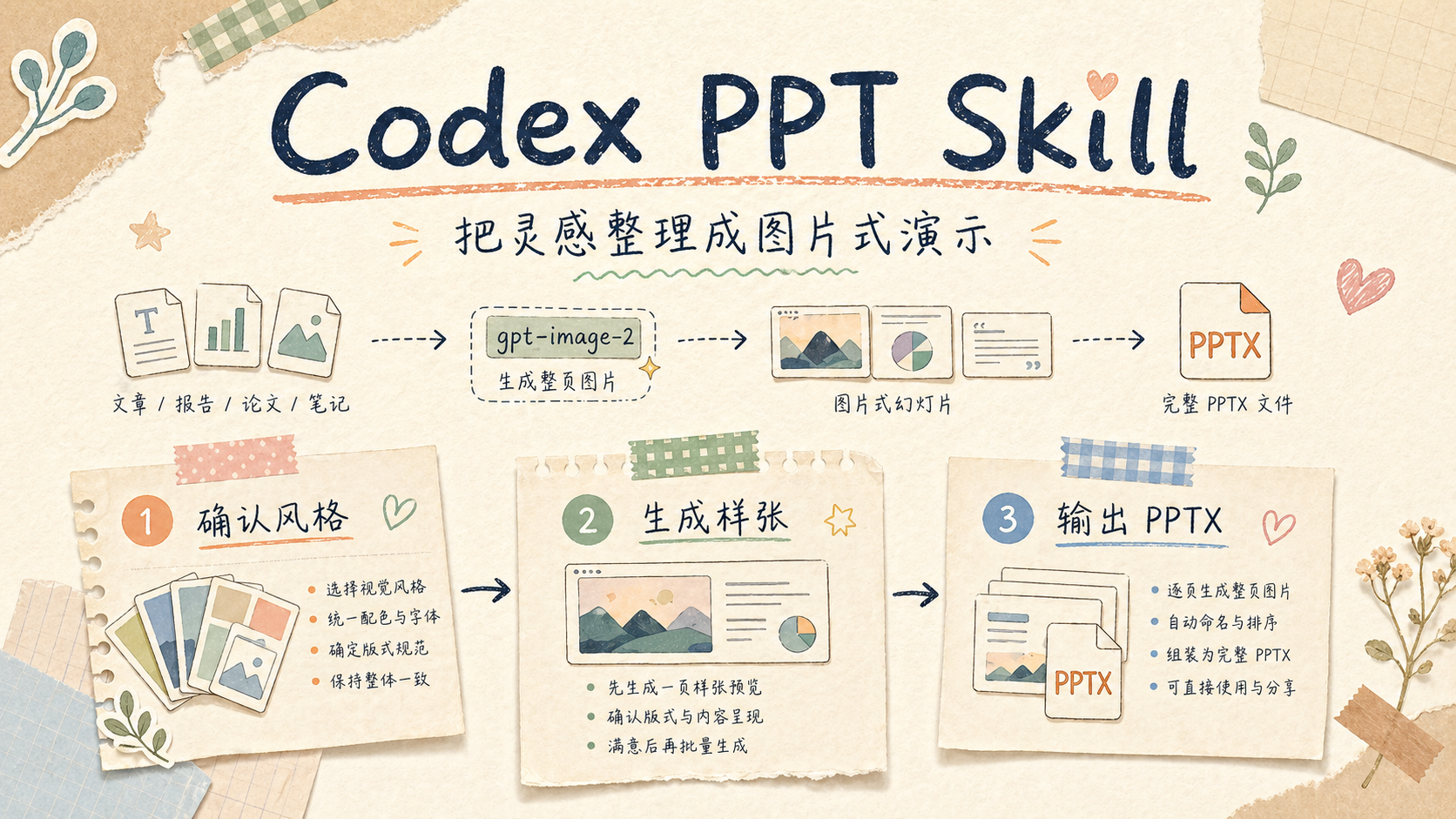
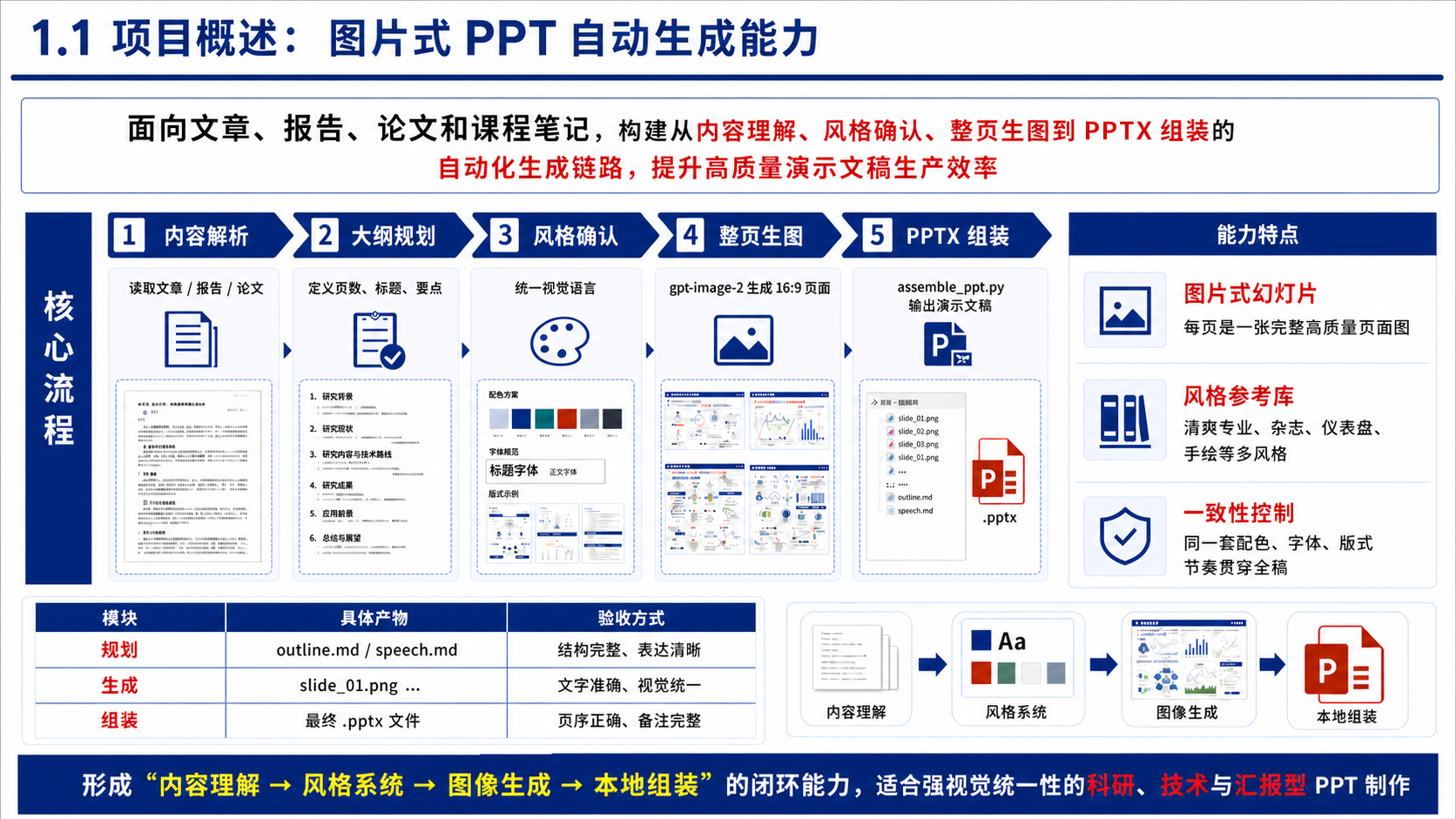
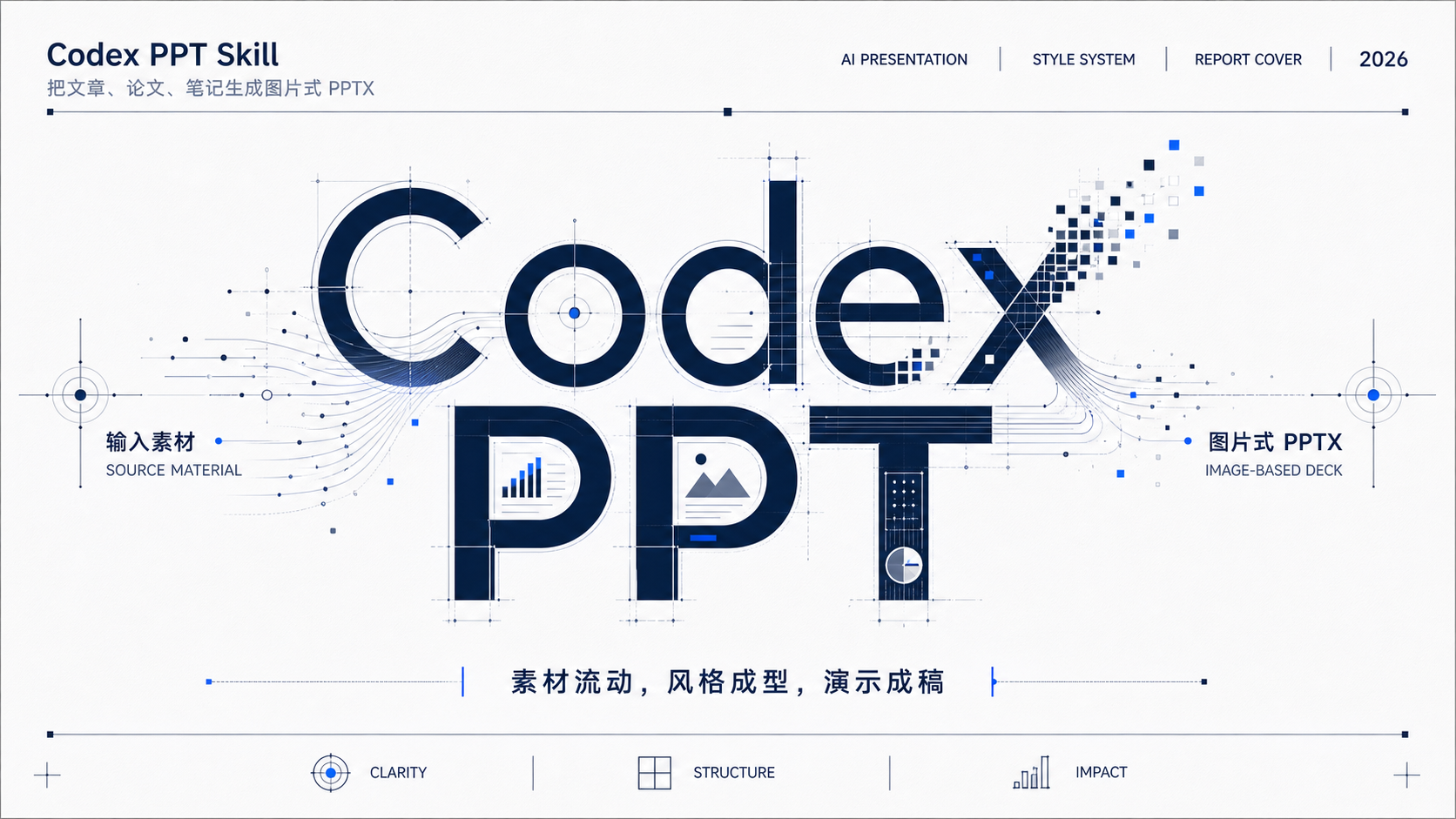
以下是已生成预览图的风格,示例图均由 gpt-image-2 生成,用于帮助用户在开始制作前选择视觉方向。
| 清爽专业风 | 创意杂志风 |
|---|---|
 |
 |
| 电子墨水杂志风 | 数据仪表盘风 |
 |
 |
| 复古扁平插画风 | 手绘技术解释风 |
 |
 |
| 手绘白板风 | 温暖手工风 |
 |
 |
| 科研答辩风 | 麦肯锡风格 |
 |
 |
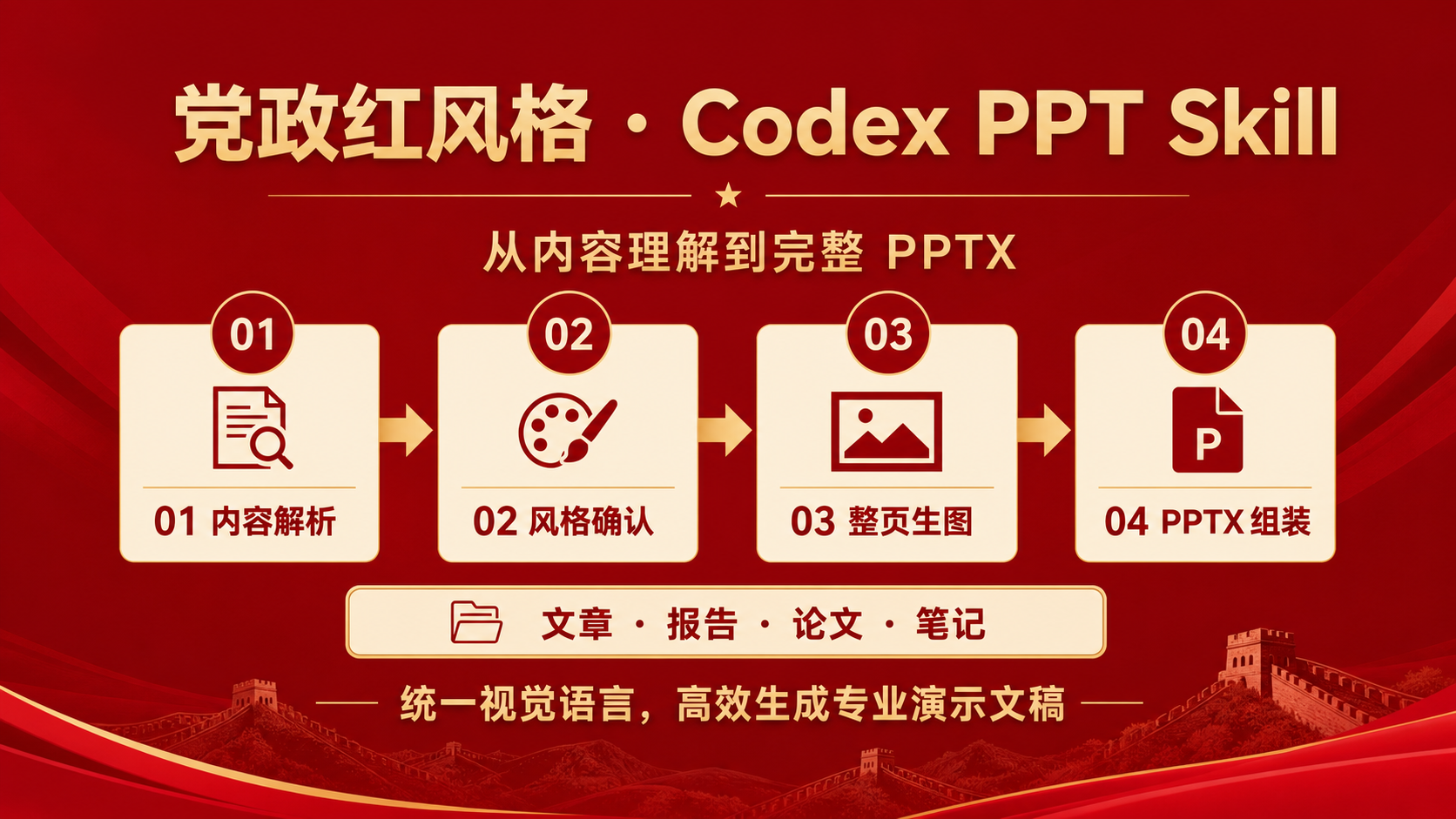
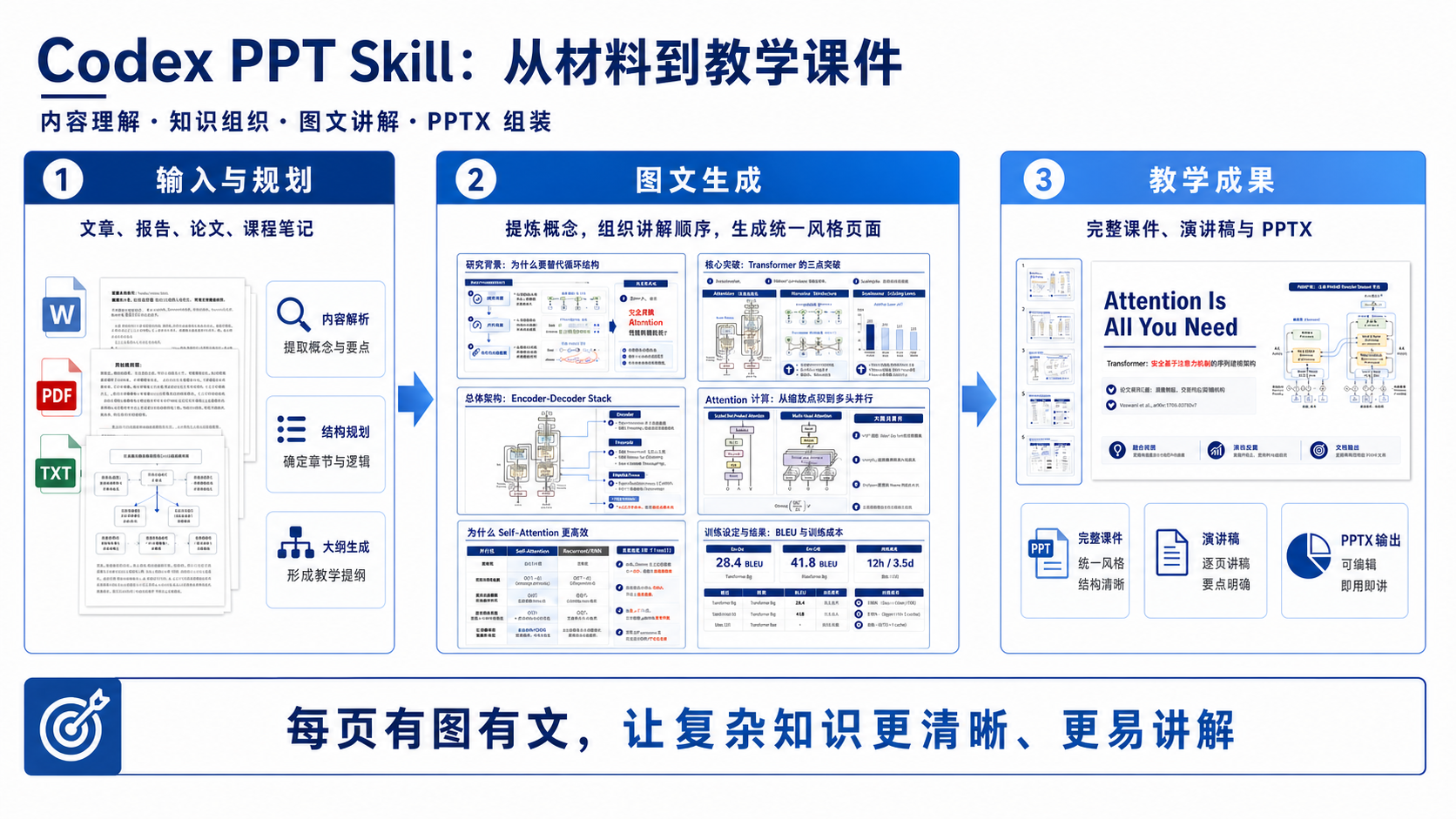
| 党政红风格 | 教学课件风 |
 |
 |
输出结构
每个 PPT 会生成一个独立项目目录:
{基础目录}/{PPT名称}/        # 当前 PPT 的独立项目目录
├── origin_image/           # 正式幻灯片图片目录,只放最终采用的页面
│   ├── slide_01.png        # 第 1 页幻灯片图片
│   ├── slide_02.png        # 第 2 页幻灯片图片
│   └── ...                 # 后续页面图片,按页码顺序命名
├── outline.md              # 经确认的 PPT 大纲、页数、每页标题和要点
├── speech.md               # 演讲稿,会写入 PPT 每页备注
└── {PPT名称}.pptx          # 最终组装生成的 PowerPoint 文件
你可以在 origin_image/ 里查看每一页最终采用的幻灯片图片,文件会按 slide_01.png、slide_02.png 这样的顺序排列。想预览整套 PPT 的视觉效果,或只挑某一页继续修改时,直接看这里最方便。
speech.md 是配套演讲稿。生成 .pptx 时,这些内容会自动写入每页 PPT 的备注区,你可以在 PowerPoint 里直接查看、修改,或演示时作为讲稿使用。
适用场景
- 技术文章转分享 PPT
- 论文或报告转演示稿
- 课程笔记转课件
- 科研项目申报、中期检查、结题验收和论文答辩
- 商业汇报、产品介绍、调研总结
- 需要强视觉统一性的图片式演示文稿
安装
一句话安装
【推荐】可以直接把下面这句话发给你的 Agent,让它帮你安装:
请帮我安装这个 codex-ppt skill,链接是:https://github.com/ningzimu/codex-ppt-skill
手动安装到 Codex
如需手动安装到 Codex,可以使用 skills CLI 安装到 Codex 的全局 skills 目录:
npx -y skills@latest add ningzimu/codex-ppt-skill \
  --skill codex-ppt \
  --agent codex \
  --global
安装完成后,重启 Codex 让新 skill 生效。
也可以从 GitHub Releases 下载 codex-ppt-skill-v*.zip,解压后把其中的 codex-ppt 文件夹放到 ~/.codex/skills/codex-ppt,然后重启 Codex。
如果你是在本地开发这个仓库,也可以把 skill 目录链接到 Codex skills 目录,方便实时调试修改:
mkdir -p ~/.codex/skills
ln -s /path/to/codex-ppt-skill/skills/codex-ppt ~/.codex/skills/codex-ppt
OpenClaw
可以通过 ClawHub 安装:
openclaw skills install codex-ppt
ClawHub 页面:clawhub.ai/ningzimu/codex-ppt
如果使用 OpenClaw 的 skill allowlist,需要把 codex-ppt 加入允许列表。
Claude Code、Hermes Agent
这些 agent 都可以读取 SKILL.md 形式的 skill。也可以使用 skills CLI 安装:
# Claude Code
npx -y skills@latest add ningzimu/codex-ppt-skill \
  --skill codex-ppt \
  --agent claude-code \
  --global

# Hermes Agent
npx -y skills@latest add ningzimu/codex-ppt-skill \
  --skill codex-ppt \
  --agent hermes-agent \
  --global
常见目标目录是:Claude Code 使用 ~/.claude/skills/codex-ppt,Hermes Agent 使用 ~/.hermes/skills/codex-ppt。
如果你是在本地开发这个仓库,也可以用软链接替代复制,方便实时调试修改。
更新
重新执行一遍上面对应的安装命令即可覆盖为最新版本,也可以直接让 agent 帮你更新:
请帮我更新 codex-ppt skill 到最新版本,仓库是:https://github.com/ningzimu/codex-ppt-skill
更新后重启 agent 生效。API key 配置(~/.codex-ppt-skill/.env)和个人风格库(~/.codex-ppt-skill/references/)都在 skill 安装目录之外,更新或重装不会丢失。
生图模型配置
[!TIP] 你可以先正常使用 Codex PPT 开始制作 PPT。一般不需要自己手动配置生图模型;当流程走到“选择生图后端”时,AI 会根据当前环境判断是否需要配置,并在需要时引导你提供相关信息。
- 如果你使用的是 Codex 内置图片生成能力,通常不需要额外配置 API key。
- 如果你确定要使用第三方供应商或 OpenAI 兼容中转站,请让 AI 先阅读 生图模型配置指南,再配置 API key、base URL 和模型名。
指定图片分辨率、提高质量或要求修改某一页,本身不会触发第三方 API 配置。如果你是通过 GPT 会员订阅使用 Codex,并且 Codex 内置图片生成工具可用,通常可以继续使用内置生图能力,不需要准备 API key。
使用方式
在 Codex、Claude Code、OpenClaw 或 Hermes Agent 中明确指定使用 codex-ppt skill,例如:
请使用 codex-ppt skill 把 /path/to/article.md 做成 10 页左右的 PPT。
skill 会按以下流程执行:
- 阅读内容并规划 PPT 大纲
- 生成
outline.md,并请求你确认页数、标题和每页要点 - 给出 2-3 个视觉风格选项,并推荐一个让用户确认
- 在首次生图前说明将使用的生图方式,并请求你确认
- 使用确认后的图片生成后端生成 1 页样张,让用户确认风格、版式节奏和文字质量
- 创建 PPT 项目目录
- 使用同一图片生成后端逐页生成全部幻灯片图片
- 检查文字清晰度、风格一致性和内容完整性
- 生成
speech.md - 使用
assemble_ppt.py组装.pptx - 可选:如果生成的 PPT 风格你很喜欢,可以保存到风格库;如果使用的是内置风格,则无需重复保存
使用技巧
- 优先使用当前环境可调用的内置生图工具;实际模型、分辨率和可调参数取决于环境,不能仅凭会员身份或成功出图确认。若需精确指定尺寸或质量,而内置工具未暴露这些参数,可选择支持相应参数的 API/CLI fallback。API/CLI fallback 默认输出为 2K 16:9;文字较多或仍模糊时可尝试 4K;GPT Image 2.5 超过
2560x1440像素的输出属于实验性能力,需检查实际结果。 - API/CLI fallback 默认使用
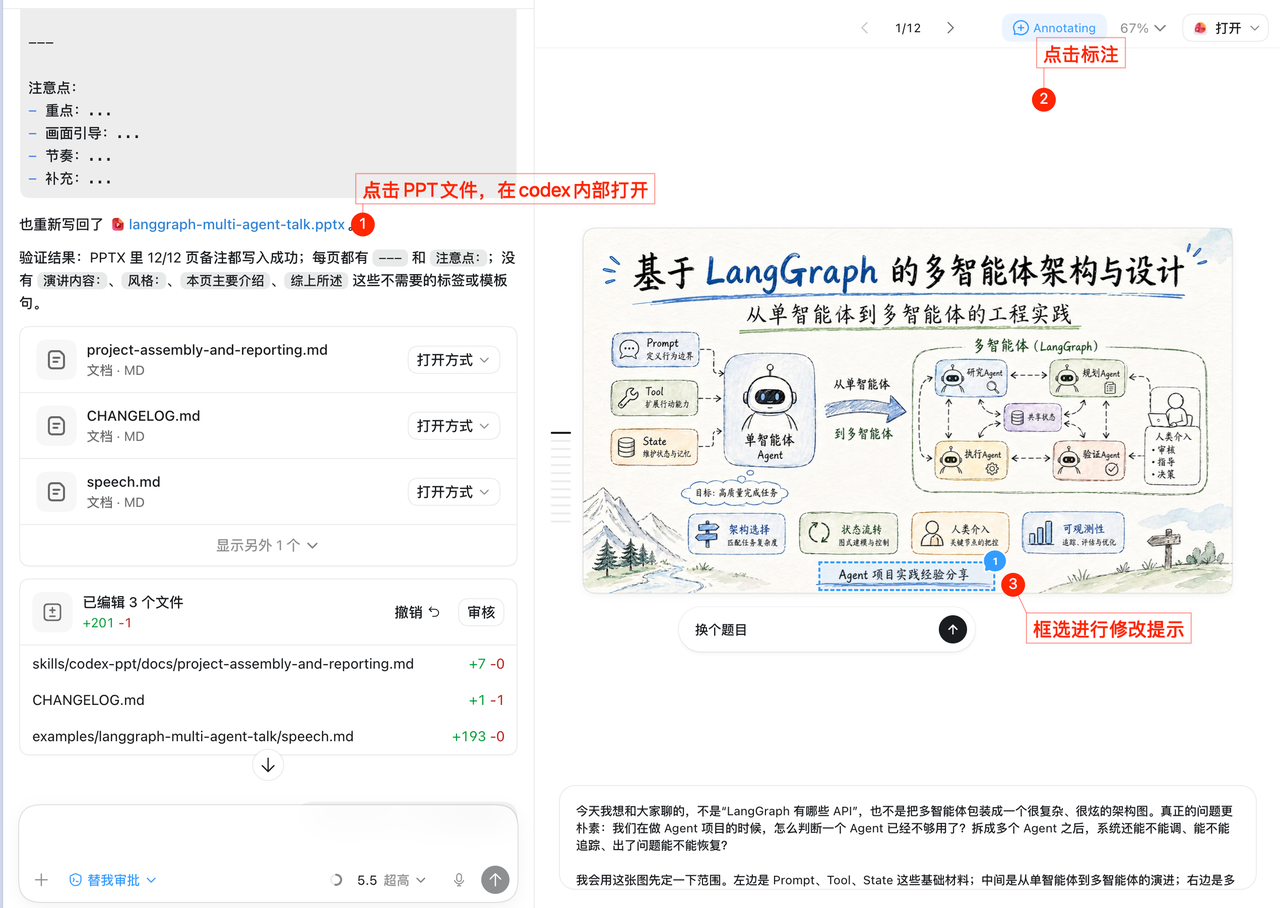
gpt-image-2.5-flare,可用--model gpt-image-2.5-sunburst切换。两者支持xhigh/max质量及透明 PNG/WebP;默认仍为 2K 16:9、medium。旧模型保留原参数限制,第三方服务需确认其支持的模型和参数。 - 如果只是不满意某一页的内容、排版、配色或文字表达,可以直接让当前 agent 针对这一页做细致修改,不需要整套 PPT 重新生成。
- 你也可以提供喜欢的 PPT 风格参考,可以是一张截图、多张截图,或完整 PPT/PDF。建议先让当前 agent 分析参考材料的配色、版式、字体和视觉元素,再按这个风格生成新 PPT。生成满意后,也可以让 agent 把这套风格保存到个人风格库(
~/.codex-ppt-skill/references/)里,方便以后复用,且不会因更新 skill 而丢失。 - 如果需要插入论文原图、实验结果图、截图或架构图,可以在大纲中指定这些图片对应的页码和用途。
我的其他项目
- image-to-editable-ppt-skill:把幻灯片截图、PDF 页面或图片版 PPTX 重建为可编辑 PowerPoint,适合在
codex-ppt生成整页图片后继续做可编辑化。 - codex-gpt-image:通过 Codex OAuth / 会员登录生成图片,支持 GPT Image 2.5 请求参数;实际后端模型取决于服务端。
- handdrawn-tech-illustrations:面向中文技术内容的手绘配图 skill,可以把技术文章、产品笔记、截图、大纲或粗略想法生成正文配图、概念解释图、微信公众号封面和小红书封面;风格强调亲和、轻卡通、中文可读和适中的信息密度。
- awesome-ai-ppt:精选的 AI PPT 相关开源项目,按 HTML-first、图片生成式、PPTX-native、转换与自动化基础设施等工作流分类,关注能帮助 agent 或开发者创建、编辑、转换、检查 PPT 的 GitHub 仓库。
- awesome-skills:精选实用的 AI Agent Skills 与配套工具;安装一个入口后,Agent 会根据任务从持续更新的清单中选择、安装并使用合适的 skill。
- claude-code-lens:Claude Code 本地观测工具,用来查看 API 流量、日志、prompt 和工具调用,适合排查 agent 实际在做什么。
支持
遇到问题?请查看使用文档,加入 CodexPPT,或提交 Issue。
许可证
MIT
致谢
感谢 LinuxDO 社区的支持。
Codex PPT Skill


A Codex skill for generating PowerPoint decks. It can also be used in Claude Code, OpenClaw, Hermes Agent, and other agents that support SKILL.md; these non-Codex environments usually require configuring gpt-image-2.5-flare, a third-party image API, or an OpenAI-compatible image generation endpoint. It turns articles, reports, papers, course notes, and other source materials into image-based presentations: first plan the outline and visual style, then generate each full-slide image, and finally assemble the images into a .pptx file with a local script.
https://github.com/user-attachments/assets/ad0fa884-87e4-4528-8030-f2dd0211693c
Sponsor
|
Thanks to Atlas Cloud for sponsoring this project. AtlasCloud is a multimodal AI inference platform that provides one API for image generation, video generation, LLMs, and more. This skill can use the existing API key, base URL, and model-name configuration to call AtlasCloud's GPT Image 2 generation and editing endpoints, with pay-as-you-go pricing and out-of-the-box setup. See the full model list on the Atlas Cloud models page. |
Codia NoteSlide |
Make generated slides editable. Convert slide images generated by Codex PPT, PDFs, or presentations exported from NotebookLM into editable PowerPoint files. Fast conversion, affordable pricing, and good visual fidelity make it a useful choice for bulk image-to-PPT conversion and frequent delivery. Try Codia NoteSlide → |
Friendly Note
[!TIP] This skill generates image-based PPT decks from articles, reports, outlines, or ideas. It is suitable for strong visual expression, but slide elements are not directly editable. If you need a more editable PPT, you can try converting the generated deck with image-to-editable-ppt-skill.
For a detailed introduction to
codex-pptandimage-to-editable-ppt, see skill_duo_intro.pdf. This deck was generated with thecodex-pptskill using the prompt: "请分别阅读 Codex PPT和 Image to Editable PPT 这两个技能的内容,然后用 Codex PPT 帮我做一个PPT吧,20页,每个技能的介绍10页。"For more practical notes on designing and tuning this PPT skill, see the Chinese article 2000 个 GitHub Star 换来的经验:好的 AI Skill 是调出来的,不是写出来的.
[!NOTE] To see more PPT examples made by users with this skill, visit the pinned showcase issue: 欢迎分享 codex-ppt 使用案例和 PPT 效果.
This skill is meant to provide a solid PPT generation workflow. To stay broadly useful, the workflow is a little more complex than most people need every day, and that complexity can sometimes add instability or redundant choices. For example, it supports both Codex built-in image generation and API/CLI fallback generation, and it also supports workflows with or without subagents. Most users will eventually use only one of those paths.
After you have a route working, consider asking an AI assistant to edit this skill and lock in your own preferences, such as your preferred image backend, whether to use subagents, output directory conventions, visual styles, or slide pacing. That way you do not need to make the same choices every time.
If you find a layout or visual style you like while making decks, whether it was generated by this skill or found elsewhere, you can ask AI to save it into your personal style library at ~/.codex-ppt-skill/references/ and gradually build your own collection. The personal style library lives outside the skill install directory, so updating or reinstalling the skill never loses it. Skills are highly personal workflows; tune this one around your own habits so it becomes more useful for your actual work.
For a basic introduction to skill design and usage, see good-skill-design.pptx. That deck was also made with this skill, using the hand-drawn technical explainer style, and is based on Claude's skill design best-practices article The Complete Guide to Building Skills for Claude.
Features
- Works across multiple agents: supports Codex, Claude Code, OpenClaw, Hermes Agent, and other
SKILL.md-based environments; Codex is the recommended environment because it can use the built-in image generation and image editing tools first. - Supports third-party image providers: works with OpenAI-compatible endpoints, AtlasCloud,
base URL, and custom model names, so API/CLI fallback can usegpt-image-2.5-flareor compatible image models. - Stable staged workflow: confirms the outline, slide count, visual style, image backend, and sample slide before full-deck generation, reducing drift and rework when generating a complete PPT.
- Guided instead of one-shot: the skill asks you to confirm
outline.md, per-slide key points, style direction, and sample-slide quality before continuing. - Low setup effort: articles, reports, papers, course notes, Markdown files, outlines, PDFs, and Word documents can all be used as starting material.
- 12 built-in PPT style references: includes clean professional, scientific defense, Party-and-Government Red, Teaching Courseware, e-ink magazine, hand-drawn technical explainer, dashboard, McKinsey style, and more. The hand-drawn technical explainer style is a strong starting point if you do not want to write prompts.
- Supports custom style replication: provide a favorite image, PDF, or PPT/PPTX, and the agent can analyze its color, layout, typography, and visual system before generating a new deck in that style.
- Builds a reusable personal style library: once you like a deck style, ask the agent to save it into
~/.codex-ppt-skill/references/so future decks can reuse it directly; the library lives outside the skill install, survives skill updates, and a personal style with the same name takes priority over the built-in one. - Supports parallel subagent generation: after the sample slide is approved, one subagent can handle one slide and self-check readability, style consistency, and content completeness before reporting issues for repair.
- Supports required image insertion: assign paper figures, experiment charts, screenshots, architecture diagrams, or other images to specific slides, and the generated page will adapt the layout and theme around them.
- Generates speaker notes: creates
speech.mdand writes the notes into each slide during PPTX assembly, making the deck easier to present or revise.
Output Example
Below is an example technical sharing deck. Each page is a complete 16:9 slide image generated by gpt-image-2, then assembled into a PPTX file by the local script.
Below is a scientific defense example based on the paper Attention Is All You Need. It shows how to assign original paper figures to specific slides as input assets, such as the model architecture, attention modules, and attention visualizations, then generate a coherent deck around those figures (see Issue #14).
Style Examples
The following preview images were generated with gpt-image-2 to help users choose a visual direction before production.
| Clean Professional | Creative Magazine |
|---|---|
|
|
| E-ink Magazine | Data Dashboard |
|
|
| Retro Flat Illustration | Hand-drawn Technical Explainer |
|
|
| Hand-drawn Whiteboard | Warm Handmade |
|
|
| Scientific Defense | McKinsey Style |
|
|
| Party-and-Government Red | Teaching Courseware |
|
|
Output Structure
Each PPT is generated into an independent project directory:
{base_dir}/{deck_name}/     # Independent project directory for this deck
├── origin_image/           # Final slide images only
│   ├── slide_01.png        # Slide 1 image
│   ├── slide_02.png        # Slide 2 image
│   └── ...                 # Additional slide images, named in slide order
├── outline.md              # Confirmed outline, slide count, titles, and key points
├── speech.md               # Speaker notes written into the PPT
└── {deck_name}.pptx        # Final assembled PowerPoint file
Use origin_image/ to review the final image used for each slide. Files are named in order as slide_01.png, slide_02.png, and so on, which makes it easy to preview the deck visually or ask for one specific slide to be revised.
speech.md is the companion talk track. When the .pptx is assembled, the content is written into each slide's speaker notes so you can view, edit, or use it directly while presenting in PowerPoint.
Use Cases
- Turn technical articles into sharing decks.
- Turn papers or reports into presentations.
- Turn course notes into teaching slides.
- Create decks for research proposals, midterm reviews, final project acceptance, and thesis defenses.
- Create business reports, product introductions, and research summaries.
- Produce image-based presentations that require strong visual consistency.
Installation
One-sentence install
Recommended: send this sentence to your agent and let it install the skill for you:
Please install this codex-ppt skill for me: https://github.com/ningzimu/codex-ppt-skill
Manual install for Codex
To install manually for Codex, use the skills CLI to add this skill to Codex's global skills directory:
npx -y skills@latest add ningzimu/codex-ppt-skill \
  --skill codex-ppt \
  --agent codex \
  --global
Restart Codex after installation so the new skill is picked up.
You can also download codex-ppt-skill-v*.zip from GitHub Releases, unzip it, place the contained codex-ppt directory at ~/.codex/skills/codex-ppt, and then restart Codex.
If you are developing this repository locally, you can instead symlink the skill directory into the Codex skills directory so changes are reflected immediately:
mkdir -p ~/.codex/skills
ln -s /path/to/codex-ppt-skill/skills/codex-ppt ~/.codex/skills/codex-ppt
OpenClaw
Install from ClawHub:
openclaw skills install codex-ppt
ClawHub page: clawhub.ai/ningzimu/codex-ppt
If you use OpenClaw skill allowlists, add codex-ppt to the allowed skills.
Claude Code and Hermes Agent
These agents can read SKILL.md skills. You can also install with the skills CLI:
# Claude Code
npx -y skills@latest add ningzimu/codex-ppt-skill \
  --skill codex-ppt \
  --agent claude-code \
  --global

# Hermes Agent
npx -y skills@latest add ningzimu/codex-ppt-skill \
  --skill codex-ppt \
  --agent hermes-agent \
  --global
Common target directories are ~/.claude/skills/codex-ppt for Claude Code and ~/.hermes/skills/codex-ppt for Hermes Agent.
If you are developing this repository locally, you can use a symlink instead of copying so changes are reflected immediately.
Updating
Re-run the matching install command above to overwrite the installed skill with the latest version, or simply ask your agent to update it:
Please update the codex-ppt skill to the latest version. The repository is: https://github.com/ningzimu/codex-ppt-skill
Restart the agent after updating. Your API key configuration (~/.codex-ppt-skill/.env) and personal style library (~/.codex-ppt-skill/references/) live outside the skill install directory, so updates and reinstalls never lose them.
Image Model Configuration
[!TIP] You can start using Codex PPT normally to make a deck. In most cases, you do not need to configure the image model by hand; when the workflow asks you to choose an image backend, the AI will check the current environment and guide you through any required information.
- If you use Codex's built-in image generation, you usually do not need an extra API key.
- If you have confirmed that a third-party provider or OpenAI-compatible proxy is needed, ask the AI to read the image model configuration guide before configuring API key, base URL, and model name.
Asking for a specific resolution, higher quality, or edits to one slide does not by itself trigger third-party API configuration. If you use Codex through a GPT subscription and Codex's built-in image generation tool is available, you can usually keep using the built-in image tool and do not need to prepare an API key.
Usage
Ask Codex, Claude Code, OpenClaw, or Hermes Agent and explicitly specify the codex-ppt skill, for example:
Use the codex-ppt skill to turn /path/to/article.md into a roughly 10-slide PPT.
The skill follows this workflow:
- Read the source content and plan the deck outline.
- Generate
outline.mdand ask you to confirm slide count, slide titles, and key points. - Offer 2-3 visual style options and recommend one for user confirmation.
- State the image generation backend before the first image and ask you to confirm it.
- Generate one sample slide with the confirmed image backend for approval of style, layout rhythm, and text quality.
- Create the PPT project directory.
- Generate all slide images one by one with the same image backend.
- Check text readability, style consistency, and content completeness.
- Generate
speech.md. - Assemble the
.pptxwithassemble_ppt.py. - Optional: if you really like the generated PPT style, save it to the style library; if it already uses a built-in style, you do not need to save it again.
Usage Tips
- Prefer the built-in image tool available in the current environment. Its actual model, resolution, and controls depend on that environment; a subscription or successful image response does not verify them. If precise size or quality settings are required and the built-in tool does not expose them, use an API/CLI fallback that supports those parameters. API/CLI fallback output defaults to 2K 16:9; try 4K for text-heavy or blurry slides. GPT Image 2.5 output above
2560x1440pixels is experimental; inspect the actual result. - API/CLI fallback defaults to
gpt-image-2.5-flare; select--model gpt-image-2.5-sunburstto switch. Both supportxhigh/maxquality and transparent PNG/WebP. Defaults remain 2K 16:9 andmedium. Older models retain their parameter limits; check which models and parameters your provider supports. - If you are unhappy with one specific slide's content, layout, colors, or wording, ask the current agent to refine that slide in detail instead of regenerating the whole deck.
- You can also provide PPT style references you like — a single screenshot, multiple screenshots, or a full PPT/PDF. Ask the current agent to analyze the colors, layout, typography, and visual elements first, then generate a new deck in that style. Once the result looks good, you can ask the agent to save the style into your personal style library at
~/.codex-ppt-skill/references/for future reuse; it will not be lost when the skill is updated. - If you need to include paper figures, experiment charts, screenshots, or architecture diagrams, specify the target slide and role for each image in the outline.
More Projects
- image-to-editable-ppt-skill: Rebuild slide screenshots, PDF pages, or image-based PPTX files into editable PowerPoint decks, useful after
codex-pptgenerates image-based slides. - codex-gpt-image: Image generation through Codex OAuth / member login, with GPT Image 2.5 request parameters; the actual backend model depends on the service.
- handdrawn-tech-illustrations: A hand-drawn illustration skill for Chinese technical content. It turns technical articles, product notes, screenshots, outlines, or rough ideas into article illustrations, concept explainer graphics, WeChat cover images, and Rednote covers, with a friendly, light-cartoon, Chinese-readable style and moderate information density.
- awesome-ai-ppt: A curated list of open-source AI PPT projects, organized by workflows such as HTML-first, image-first, PPTX-native, conversion, and automation infrastructure, focused on GitHub projects that help agents or developers create, edit, convert, or inspect PPT decks.
- awesome-skills: A curated list of practical AI Agent Skills and related tools. Install one entry point, and your agent can consult the continuously updated list to select, install, and use the right skill for each task.
- claude-code-lens: A local observability tool for Claude Code API traffic, logs, prompts, and tool calls, useful for understanding what an agent is actually doing.
Support
Having trouble? Check the usage documentation, join CodexPPT, or open an issue.
License
MIT
Acknowledgements
Thanks to the LinuxDO community for its support.