Fizgig
Fizgig — LoRA & Fine-tune Studio for Klein 9B, Krea 2, MiniMax H3, Qwen Image 2.1, Anima & Z-Image Turbo and Ace-Step XL: train, fine-tune, profile, repair and extract LoRAs & LoKR for Image, Video & Music Models
原始仓库简介 · 中文摘要待补充 · ace-step-1-5 / ai / deep-learning / fine-tuning / finetuning / flux
README / 项目原文
仓库未提供中文 README,当前显示作者提供的原文。
Fizgig — LoRA & Fine-tune Studio for Klein 9B, Flux 3 Image Klein, Krea 2, MiniMax H3, Qwen Image 2.1, MOSS-Image, Z-Image Turbo, SDXL & Anima
Fine-tune base models on consumer GPUs — down to 8 GB. Fix broken LoRAs without retraining. Find the best epoch by eye.
A train · fine-tune · repair · explore workbench built end-to-end for Flux 2 Klein 9B, Flux 3 Image Klein, Krea 2, MiniMax H3, Qwen Image 2.1, MOSS-Image, Z-Image Turbo, SDXL and Anima — training on photos, video, sound and voices, from quick LoRAs to the full base model.




No GPU, or want a bigger one? Fizgig runs on rented hardware — one click, nothing to install.
On RunPod's page, add a 300 GB Volume disk before Deploy Pod (how).
Deploying through that link supports Fizgig's development at no extra cost to you.
Start-to-finish walkthrough — install, prep, caption, train, and the workbench tools


📰 Latest news
- Fizgig 8.9.6 — masked training. Train on the part of each picture that matters: the person, not the room around them. A black-and-white mask beside a picture says which part counts, and Image Prep makes them for a whole folder in one click (the person, just the face and hair, the body without the face, and more). In our tests of character LoRAs, masks significantly raised both the best likeness a run reached, by eye and in likeness scores, and how quickly it got there, on every recent model. It seems especially effective on MOSS-Image with its default Clean-end share, Slide. Release notes · Masked training guide
- Fizgig 8.9.5 — faster training on 40 GB+ cards. On most pods (A100, A40, A6000, L40S, H100, RTX PRO 6000) Auto now turns gradient checkpointing off when the run fits with room to spare: 13–27 % faster per step on Krea 2, Qwen Image 2.1, MOSS-Image, Z-Image and MiniMax H3. Where it doesn't all fit, the last blocks go without it: 2–21 % faster. Previews keep at least 4 GB free, and cards of 32 GB and under train as before. Release notes
- Fizgig 8.9.0 — your other GPUs, at home or in the cloud, speeding up your run. A helper is another computer running Fizgig: a second PC or laptop, a second GPU in this computer, or a RunPod or Vast.ai pod. It renders your previews so training never stops for them, takes over a run while you need your computer, or trains a share of each epoch alongside your GPU. In a share, each GPU trains its own copy of the LoRA on its part of the images and the copies' changes are added into one LoRA at every combine: in testing its likeness matched a one-GPU run. On a fast network, combine every epoch for the closest result. It pays most on long runs. Training on a pod? Your home GPU can help it, and its checkpoints come home as they're saved. Release notes · ▶ Watch the video · Helpers guide
- Fizgig 8.8.1 — MOSS-Image likeness sooner, and previews with the SFT look. A new Clean-end share default, Slide, brings likeness in early and keeps it: on our most difficult dataset, the best of eight settings we tried, around 70% likeness from epoch 20 to epoch 60. Base previews can take on much of MOSS-Image SFT's look with no model swap, every enlarged preview says how it was made, and Krea 2's Auto precision no longer picks a slow setup on 16 GB cards. 8.8.2 stops the web UI freezing when you open it during a long run. Release notes · 8.8.2 · ▶ Watch the video · MOSS-Image guide
- Fizgig 8.5 — MOSS-Image. OpenMOSS's new 5B open image model trains in Fizgig: LoRAs, LoKRs, sliders, full fine-tuning, Multi Concept and Fizgig LoRA Isolation, with previews on MOSS-Image SFT, the model most people generate with, and every workbench tool. Brought to Fizgig by @Murf-Code. 8.5.1 fixes the GPU readout on AMD cards (thanks @scryptio); 8.5.3 fixes Linux launching; 8.5.4 makes MOSS-Image previews render as ComfyUI does; 8.5.5 trains MOSS-Image at 1 MP; 8.5.8 fixes MOSS-Image training with block swap; 8.5.9 makes MOSS-Image Studio renders faster; 8.6.0 improves MOSS-Image likeness and adds an option for training on SFT; 8.6.1 fixes noisy Qwen Image 2.1 previews; 8.7 brings MOSS-Image likeness much sooner with a new Clean-end share option, 30% by default since 8.7.1, fine-tunes included in 8.7.2, since 8.7.3 a fine-tune fits a 16 GB card, and 8.7.4 adds an 8-step Turbo LoRA for fast previews on Base, 8.7.5 lets MOSS-Image train on computers with 16 GB of RAM, 8.7.6 fixes the cache on a resume and for a refilled folder, 8.7.7 drops Kromoss, 8.7.8 adds preview and save schedules, 8.7.9 is a maintenance release, and 8.8.0 fixes resuming a run on Python 3.10. Release notes · MOSS-Image guide
- Fizgig 8.4 — Fizgig LoRA Isolation. Train two people into one LoRA and every stranger keeps their own face: with a normal LoRA 48 of 50 strangers came out looking like the trained person, with LoRA Isolation 0 of 50, at the same likeness. DOP from @ostris's AI-Toolkit at its base, with Fizgig's own techniques on top, set up on the Training tab's new Subjects card, on every model except ACE-Step. 8.4.2 adds a trigger word checker on the same card. Demo · How to set it up · Release notes
- Fizgig 8.1 — Flux 3 Image Klein, from day one. Black Forest Labs' new 5.6B text-to-image and edit model trains in Fizgig the day it came out: LoRAs, LoKRs, edit LoRAs from before/after pairs, slider LoRAs and full fine-tuning, from an 8 GB card, with every workbench tool, prompt travel and edit chains in LoRA Royale included. Release notes · Flux 3 guide
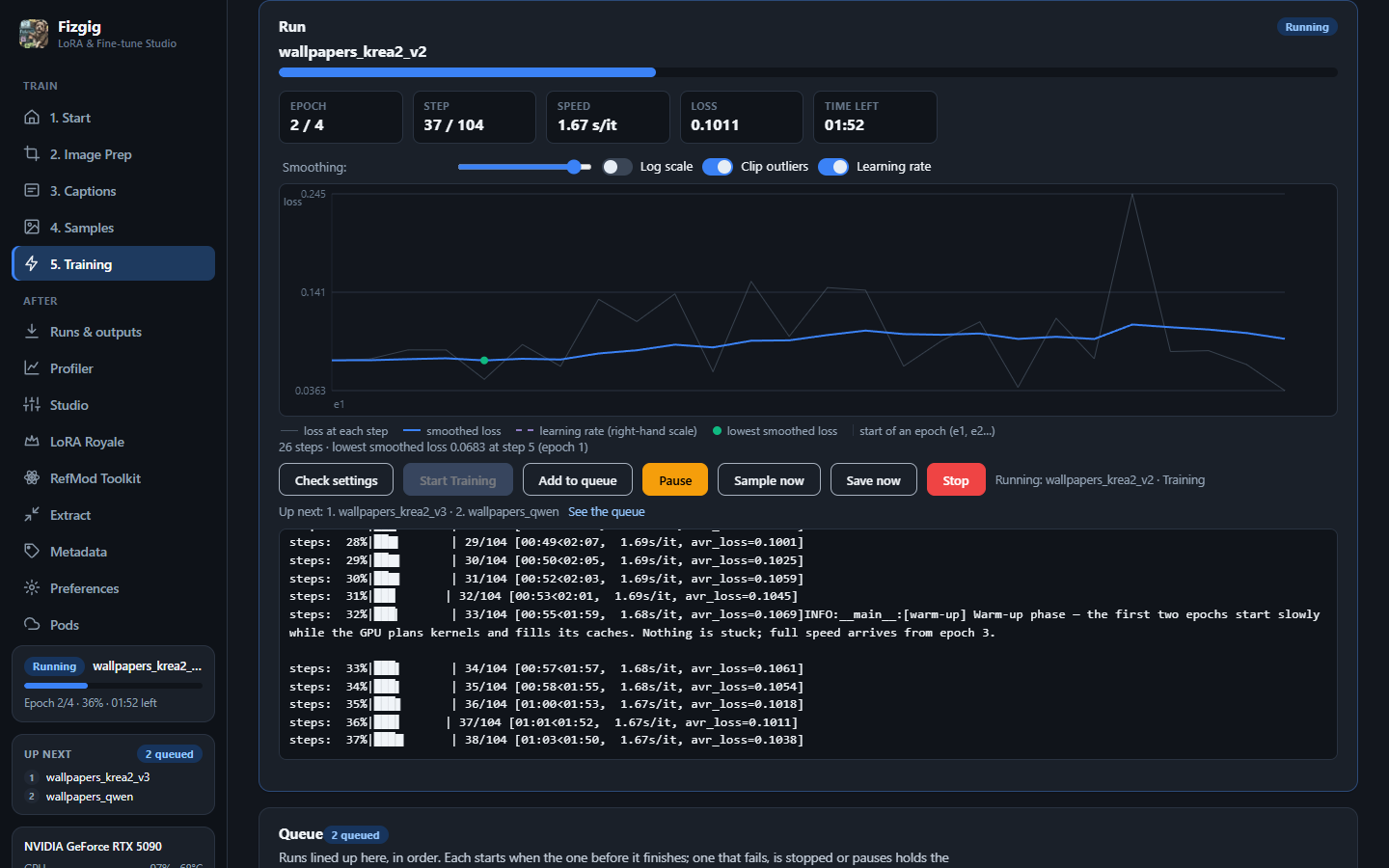
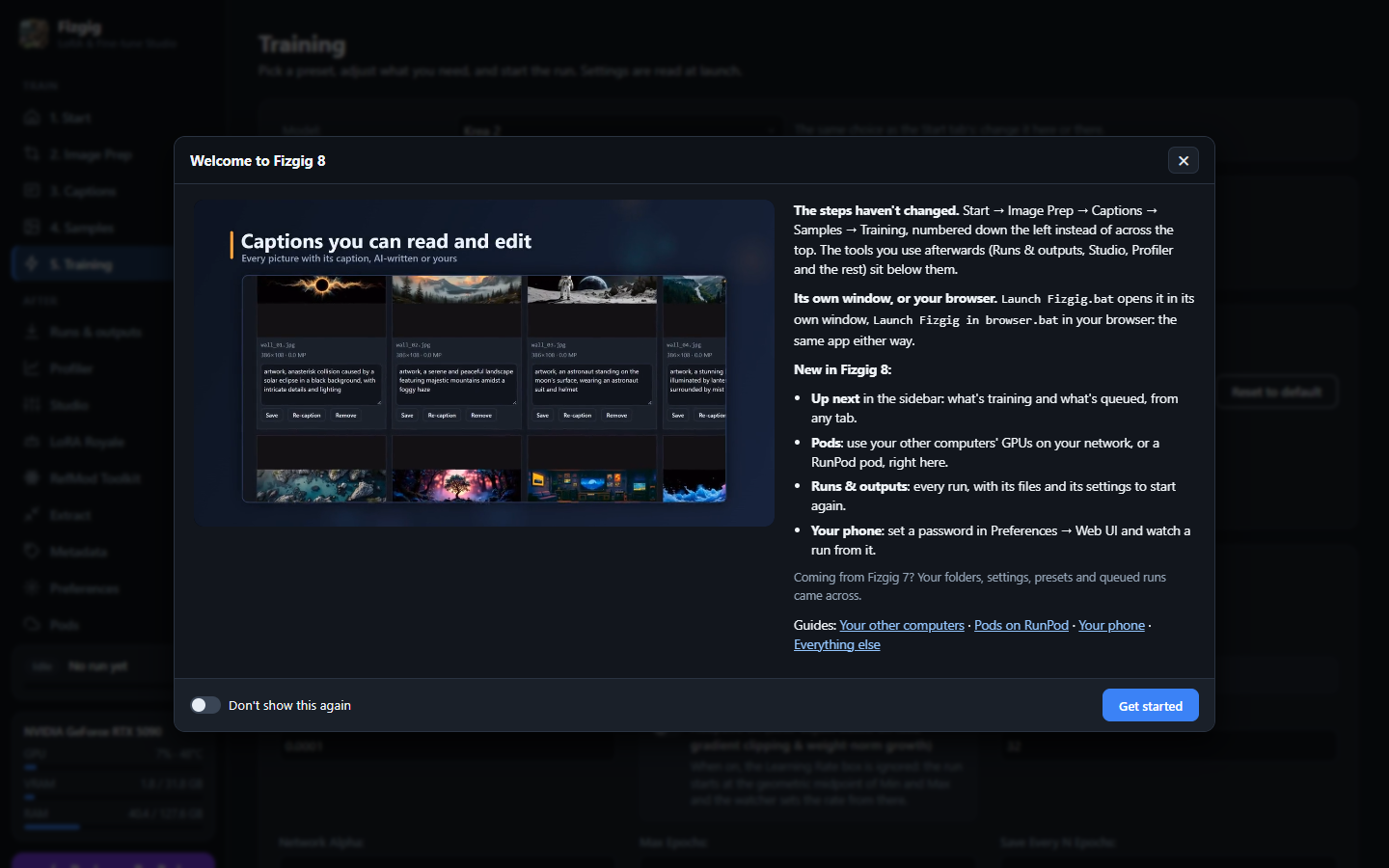
- Fizgig 8 — the new app (yes, the web UI). Fizgig opens in its own window or your browser, and your phone can watch a run. One Pods tab opens your other computers' GPUs, found on your network by themselves, and RunPod pods, logged in for you. What's training and what's up next sit in the sidebar on every tab, and Runs & outputs keeps every run. Updating keeps your settings, presets, folders and queued runs; a welcome tour on the first start shows where everything went. Release notes · The app
- Fizgig 7.3 — music with ACE-Step 1.5 XL. Train LoRAs on your own songs, music sliders and full fine-tuning, previews you play in the gallery, and Repair Studio as a DAW for AI music: covers, repaint and extend, a model EQ. Gizmo gets a Music tab for cutting songs into sections. Release notes · ACE-Step guide
- Fizgig 7.2 — Qwen Image 2.1 Turbo. Repair Studio, LoRA the Explorer and LoRA Royale preview on Qwen's new Turbo model, and training previews use Comfy-Org's new Turbo LoRA: 8 steps, CFG 1, about four times faster, and LoRAs trained on the base keep their likeness on it. Plus MiniMax H3 long captions on V100-class cards by @Hell-Bent-Fox. Release notes
- Fizgig 7.1 — Z-Image Turbo, with its own training adapter. LoRA and LoKR training, sliders, full fine-tuning and every workbench tab. Fizgig's training adapter keeps Turbo's 8-step look while your LoRA learns: better likeness, image quality and detail than the adapter most people use. LoRAs from 12 GB cards, fine-tunes from 16 GB. Release notes
- Fizgig 7.0 — Anima and SDXL arrive, fine-tuning for every model, and the driver system is complete - meaning the community can now add models to Fizgig (Docs included). Anima and SDXL join with LoRA and LoKR training, sliders, fine-tuning and the full workbench. Every model fine-tunes on a 16 GB card (Anima and SDXL from 8 GB), and bigger cards train the whole model at once. Release notes · Add your own model
- Fizgig 6.8 — Krea 2 sliders, Ultra mode and Qwen fine-tuning. Slider LoRAs on Krea 2, with an Ultra mode that holds up at much higher strengths; full fine-tuning for Qwen Image 2.1 (a single character in as little as 30 minutes on a 5090); Repair Studio with nudge buttons, no strength limit and donor saves that look exactly as previewed; and Krea 2 on Fizgig's new driver system, with Klein and MiniMax H3 next. Release notes
- Fizgig 6.7 — Qwen slider LoRAs. A LoRA whose strength is a dial between two looks (sad to happy, cool to warm), trained from a few photo pairs or from a few words. Release notes
- Fizgig 6.6 — Qwen edit LoRAs. Teach Qwen Image 2.1 your own edit (a grade, a look, a relight) from pairs of original and edited photos, then apply it to any photo. Release notes
What Fizgig is
A trainer and workbench for image, video and music models, in its own window on your computer, in your browser, or on a rented GPU — and you can watch a run from your phone. Every trainer makes LoRAs; Fizgig is also built around what you do with them afterwards:
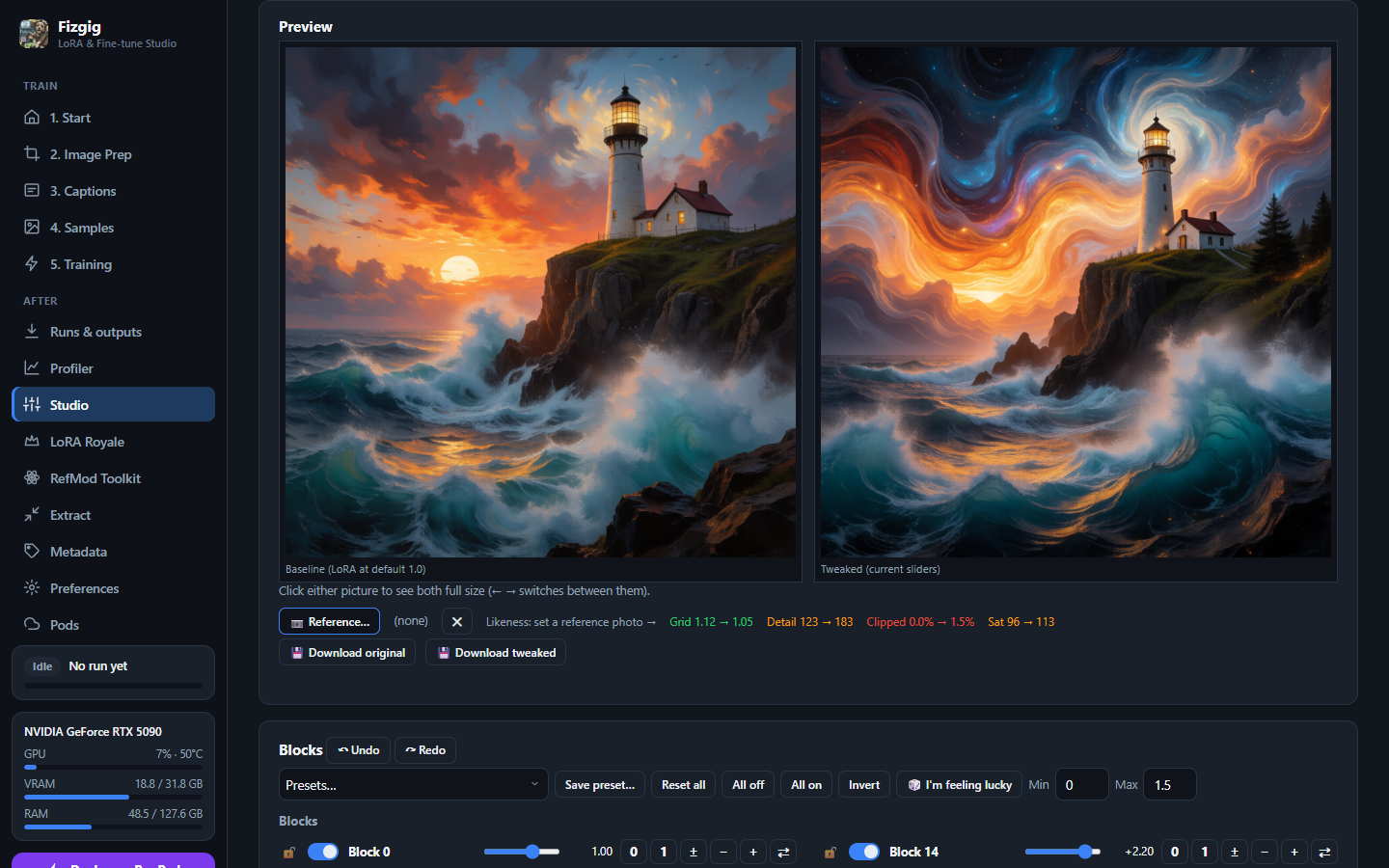
- Fix a LoRA block by block without retraining: drag a slider per block, save a new
.safetensors. - Explore variations: 🎲 I'm feeling lucky in Studio rolls new block strengths within your limits; keep the ones you like.
- Find the best epoch by eye: LoRA Royale renders every epoch on one seed with a crossfade, and exports shareable loops.
- Profile which blocks carry identity, style and detail before you touch anything.
- Train beyond LoRAs: LoKR, or the full base model itself: Anima on an 8 GB card, the larger models on 16 GB. A LoRA extracted from a fine-tune came out better than one trained directly at the same rank.
Memory plans itself: precision, block swap and previews size to your free VRAM, and if a preview can't fit, training keeps going. Fizgig loads kohya, PEFT, OneTrainer, AI-Toolkit and LyCORIS LoRAs, and saves .safetensors that drop straight into ComfyUI. Free and open source.
https://github.com/user-attachments/assets/2db82d0d-e7ed-4f60-a79c-d2ac1f4984ac
The Fizgig 8 tour · watch it on YouTube
Supported models
| Model | Trains on | LoRA | LoKR | Slider / Edit LoRA | Full fine-tune | Smallest card | Guide |
|---|---|---|---|---|---|---|---|
| Flux 2 Klein 9B | photos | ✅ | ✅ | ✅ slider + edit | ✅ experimental | 10 GB | Klein 9B |
| Flux 3 Image Klein (5.6B), experimental | photos | ✅ | ✅ | ✅ slider + edit | ✅ experimental | 8 GB | Flux 3 Image Klein |
| Krea 2 (12.9B) | photos | ✅ | ✅ | ✅ slider | ✅ experimental | 8 GB | Krea 2 |
| MiniMax H3 (33B) | photos, video clips, sound, voice | ✅ | ✅ | ✅ slider | ✅ experimental | 16 GB | MiniMax H3 |
| Qwen Image 2.1 | photos | ✅ | ✅ | ✅ slider + edit | ✅ experimental | 10 GB | Qwen Image 2.1 |
| MOSS-Image (5B), experimental | photos | ✅ | ✅ | ✅ slider | ✅ experimental | 12 GB | MOSS-Image |
| Z-Image Turbo (6B), experimental | photos | ✅ | ✅ | ✅ slider | ✅ experimental | 12 GB | Z-Image Turbo |
| SDXL (any checkpoint), experimental | photos | ✅ | ✅ | ✅ slider | ✅ experimental | 8 GB | SDXL |
| Anima (2B), experimental | photos | ✅ | ✅ | ✅ slider | ✅ experimental | 8 GB | Anima |
| ACE-Step 1.5 XL (4B), experimental | songs | ✅ | — | ✅ slider | ✅ experimental | 16 GB | ACE-Step |
Every image and video model gets all four workbench tools; ACE-Step has Studio and Extract. Qwen Image 2.1 trains on the base model and previews on Qwen's own Turbo (8 steps, CFG 1); your LoRAs work on both. MOSS-Image trains on Base and previews on MOSS-Image SFT, the model most people generate with. MiniMax H3 also makes RefMods, tuned against H3 itself rather than a plain encode (how do I…?). Fizgig's training adapters for Qwen Image 2.1 and Z-Image Turbo are free on Hugging Face for any trainer. Full fine-tuning has its own guide.
The workbench
Each tool works on your own runs or any LoRA you've downloaded, and they hand off to each other. More detail.
- Studio (was Repair Studio) — a live slider per block with a side-by-side preview, donor-LoRA blending, 🎲 I'm feeling lucky for random variations within your limits, and an exact baked save. On H3 the previews are clips with sound, with a background block library and first/last-frame pinning.
- LoRA Royale — every epoch on one seed, an optional likeness score, and MP4/GIF exports: epoch morphs, seed/prompt/strength travels, comparison sheets.
- Profiler — a colour-coded per-block report that Studio reads inline.
- Extract — shrink any LoRA to a lower rank.
Training features
- Presets per model: pick a ✨ preset on the Training tab and go.
- Slider LoRAs (Klein 9B, Flux 3 Image Klein, Krea 2, MiniMax H3, Qwen Image 2.1, MOSS-Image, Z-Image Turbo, SDXL, Anima): a LoRA whose strength is a dial between two looks, from photo pairs or three prompts, and a slider from prompts can be steered while it trains (change its ends, it trains on toward them). Krea 2's Ultra mode trains the composition blocks only, so the dial holds up at much higher strengths. It works best for sliders trained from prompts, and with photo pairs when the change is compositional.
- Edit LoRAs (Klein 9B, Flux 3 Image Klein, Qwen Image 2.1): teach an edit from pairs of original and edited photos, then apply it to any photo.
- Fizgig LoRA Isolation, on the Subjects card (every model except ACE-Step): up to four people in one LoRA, each from their own folder. Fizgig's own techniques combined with DOP keep your subjects to their trigger words: leave the trigger out and you get the model's own people, and in a group picture your subjects, strangers and people the model already knows each keep their own face. See it in action · How it works · How to set it up (video) · How to caption for it.
- Masked training (every image model except MiniMax H3): train on the part of each picture that matters, the person and not the room around them. Image Prep makes the masks for a whole folder in one click, or you paint your own. In our tests of character LoRAs it significantly raised both the best likeness and how quickly runs got there. How it works
- Adaptive LR: a plateau tracker that raises or lowers the rate within your Min/Max, with rollback on instability.
- Weight averaging (EMA), on by default where it's measured to help.
- Context LoRA: train on top of a frozen, active LoRA so the two coexist (a face on a style, an outfit on a character). No other trainer does this.
- Pause and resume with full state, plus a training queue for back-to-back runs.
- The trainer curates your dataset while it trains (every model except MiniMax H3). Every image starts as useful training data; the watch follows each one's loss, and only when an image stops teaching the model does it step in: throttle it, recaption it, and as a last resort set it aside. It also tells you when the whole run has plateaued. No other trainer does this.
- Fast previews in a few steps on a turbo or distilled model where one exists: Klein's and Flux 3 Image Klein's distilled models, the Turbo LoRAs for Krea 2, MiniMax H3, Qwen Image 2.1 and Anima, and Qwen Image 2.1's Turbo model.
- A sample gallery that scores likeness live, and a run visualiser to scrub epochs.
- Dataset prep: AI captions with Qwen3-VL or Florence-2, bilingual captions, face crops, and a Look Consistency Filter.
- Face backends for every kind of character: face crops, the Look Filter and likeness scores work on anime, furry and fursuit characters as well as people (see the section below).
- Gizmo (MiniMax H3): cut clips with scene detection, crop to the subject, and record or segment a voice dataset with Whisper transcription.
Full list: docs/TRAINING.md. Everything also runs headless: docs/CLI.md.
One app, wherever you are
- In its own window (
Launch Fizgig.bat), or in your browser (Launch Fizgig in browser.bat) — the same app either way. - The queue in sight: what's training and what's up next sit in the sidebar on every tab; a held queue says why, with Start queue right there.
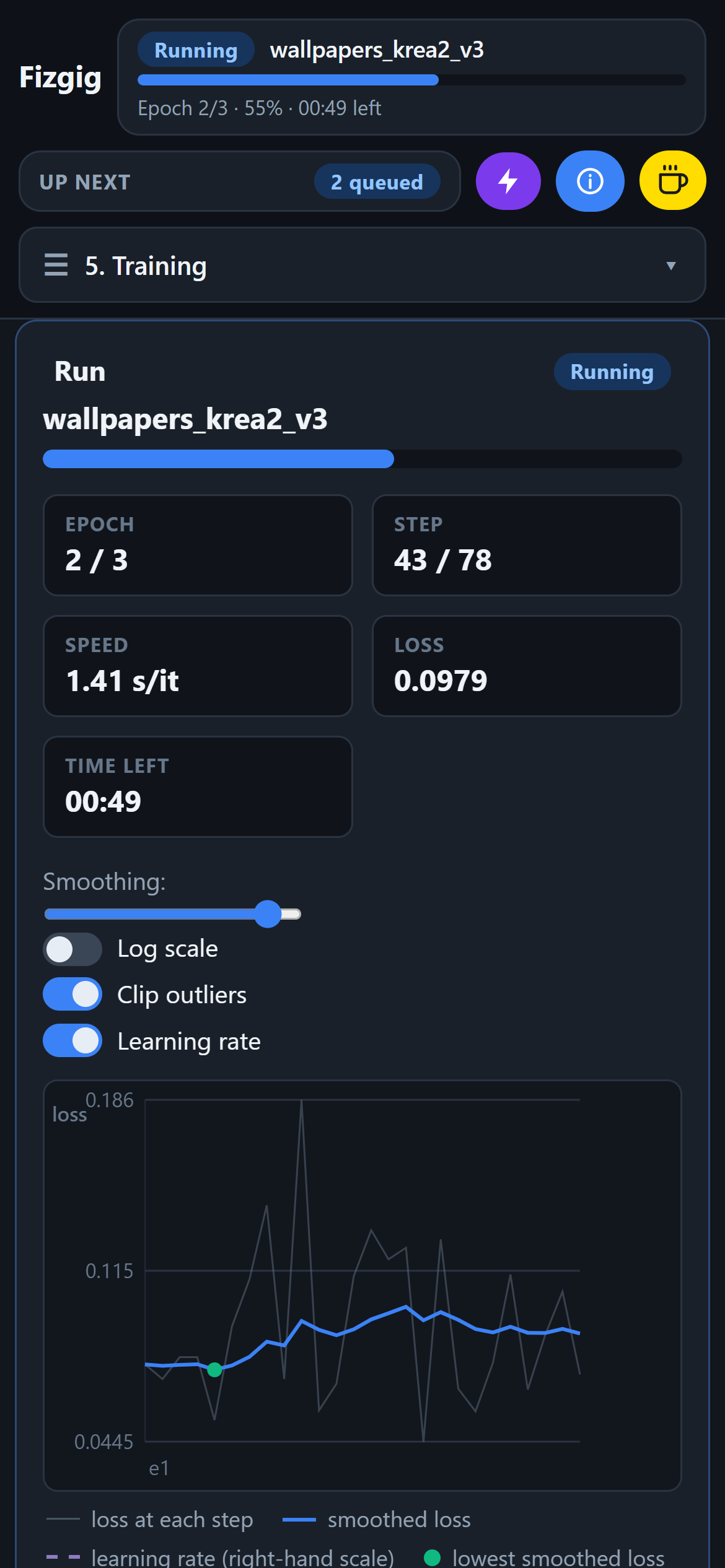
- On your phone or another computer: set a password in Preferences and open it over your network, or scan the Start tab's Open on your phone QR code and you're straight in; add it to your phone's home screen and it opens like an app.
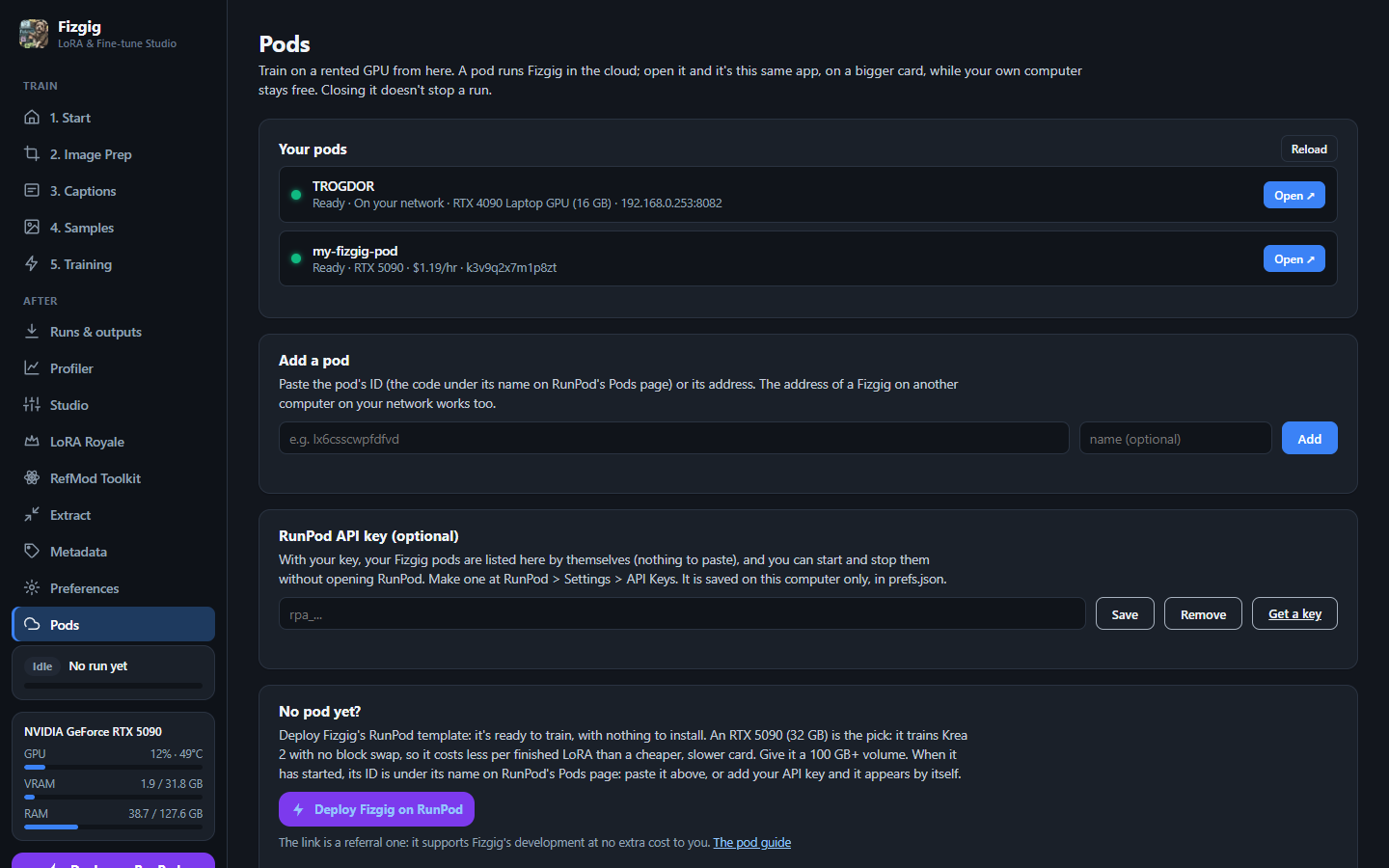
- On your other computer's GPU: train on your desktop's card from your laptop. Fizgig finds your other computers running it, and the Pods tab opens one as it does a pod (how).
- On a rented GPU: the Pods tab finds the card that's cheapest per run among those RunPod has free right now (one card or two), deploys it, opens the pod in the same window (logged in for you), and sends a training folder from your computer straight to it. Prefer Vast.ai? Fizgig has a template there too, with https addresses and a stop when the run finishes (Vast.ai).
- Your other GPUs helping: a second computer, a second GPU in this one, or a pod renders your previews so training never stops for them, trains a share of each epoch alongside yours, or takes over a run while you game or someone else needs the computer, then hands it back. A pod's checkpoints can come home as they're saved, and the pod can be deleted once they're all here (Helpers).
- Runs & outputs keeps every run with its loss graph, notes, previews and checkpoints, and starts any of them again with the same settings.
More: docs/WEB_UI.md.
Face backends
Face crops, the Look Consistency Filter and every likeness score can work on anime, furry and drawn characters and fursuits too, not just people.
The defaults are InsightFace (face finder) and ArcFace (look match), the same as before. People's sets need nothing changed. Everything else is opt-in: open Image Prep → Anime/furry/drawn characters and pick:
- Face finder: Anime/furry/drawn (YOLO model) for characters, or Both for a set with people and characters in it.
- Look match: Anime/furry/drawn for characters, or Auto (Decide for each set). Each look match has its own thresholds, and saved scores record which one made them.
Setup (which face model to use and how to get it), numbers and limitations are in docs/FACE_BACKENDS.md.
Install
Needs an NVIDIA RTX 30/40/50-series or an AMD Radeon with ROCm, Windows 10/11 or Linux, Python 3.10–3.13, and 32 GB of system RAM recommended. Full requirements, AMD ROCm and model downloads: docs/INSTALL.md.
Clone the repo rather than downloading the ZIP (the updater pulls with git):
git clone https://github.com/shootthesound/Fizgig.git
cd Fizgig
- Windows (NVIDIA): double-click
install_fizgig.bat, then launch withLaunch Fizgig.bat(its own window) orLaunch Fizgig in browser.bat(in your web browser); update withupdate_fizgig.bat. - Linux (NVIDIA):
python install_fizgig.py, then./launch_fizgig.shor./launch_fizgig_browser.sh; update with./update_fizgig.sh. - AMD ROCm: see docs/INSTALL.md.
Model files download from the Preferences tab: one Download models for me button per model.
No GPU? Rent one
Nothing to install on your computer: the whole app runs on the pod, in your browser.
- ⚡ Deploy on RunPod, and add a 300 GB Volume disk before Deploy Pod: RunPod doesn't add one for you (how).
- Wait for Ready in the pod's Logs tab; the password is printed under it.
- Connect → HTTP port 8081, and log in with that password.
- Preferences → Download models for me, upload your training folder on the Start tab, and press Start on the Training tab.
Prefer Vast.ai? The same image runs there: Fizgig on Vast.ai (guide).
Step by step: Quick start. The pod also has a drag-and-drop file manager for big datasets and fine-tunes (the File manager button in the sidebar), one-click model downloads and an optional auto-stop when training finishes. The full pod guide.
Mid-job on the old pod with the remote desktop? It stays available as Fizgig Classic v7.x, and pods you already have keep running as they are.
Getting started
Work down through the numbered tabs:
- Start — set your training image folder.
- Image Prep (optional) — resize, face-crop, and filter out images that don't match the look.
- Captions — trigger-word or AI captions.
- Samples — the preview prompts that render during training.
- Training — pick a model and a preset, click Start Training.
Tip: give one sample prompt something your dataset doesn't have, such as a specific pose, angle or setting that none of your photos show (for example "looking over her shoulder from a low angle" when your photos are all straight-on portraits). Early epochs follow it. When a LoRA starts to overtrain, that is the first thing to fail: the previews drift back to your dataset's framing even though the prompt asks for something else. The last epoch that still follows it is a good one to keep.
The unnumbered tabs are Runs & outputs, the workbench (Profiler, Studio, LoRA Royale, RefMod Toolkit, Extract, Metadata), Preferences, and Pods. The video tutorial walks through all of it.
Updating from Fizgig 7
Run update_fizgig.bat as always. Fizgig 7's desktop app is replaced by the new one: start it with Launch Fizgig.bat from now on (run_fizgig.bat is gone, so point a shortcut at the new file). Everything of yours moves into one user_data folder: your settings, presets, models, cache and queued runs come across, Fizgig opens on the model you last trained, and the welcome on the first start shows where everything went.
Community translation: Korean (한국어) by @ssain3d-lgtm, an unofficial add-on that translates the UI at runtime without touching Fizgig's files and uninstalls with one script. If you hit a bug with it installed, uninstall and reproduce before reporting here; translation issues go to its repo.
Support the project
Fizgig is free. If it saves you time or makes your LoRAs better, a coffee or a GitHub sponsorship keeps it going:
Renting through the RunPod link supports development too, at no extra cost to you. Add a 300 GB Volume disk on RunPod's page before Deploy Pod (how).
Documentation
| Guide | What's in it |
|---|---|
| Install and requirements | Hardware, system RAM, AMD ROCm, model downloads, VRAM tables |
| Klein 9B · Flux 3 Image Klein · Krea 2 · MiniMax H3 · Qwen Image 2.1 · MOSS-Image · Z-Image Turbo · SDXL · Anima · ACE-Step | Each model: presets, features, memory |
| Training and the workbench | The shared features and tools in detail |
| Face backends | Face finder (InsightFace / YOLO) and look match (ArcFace / DINOv2) for people, anime and furry |
| Full fine-tuning · How do I…? | Training the base model itself |
| RefMods | RefMods for MiniMax H3 |
| Command line | Every trainer, headless |
| Fizgig LoRA Isolation | How it works, the recipe and the results |
| Masked training | Train on the part of each picture that matters; making masks, or painting your own |
| The app | Starting Fizgig, its window and browser, your phone, your other computers, the port and password, pods |
| Helpers · Previews on a helper · Training share · Move a run | Another computer or a pod renders your previews, trains a share of each epoch, or takes over a run while you use your computer |
| RunPod · Vast.ai | The cloud image, on RunPod and on Vast.ai |
License
Fizgig is open source under the Apache License 2.0 — free to use, modify, and redistribute, including commercially, with attribution and no warranty. Third-party components under compatible permissive licenses (and other terms where noted) are listed in THIRD_PARTY_NOTICES.md.
The Automagic v3 optimizer, the Krea 2 MMDiT backbone and flow-matching sampler, and Ostris's MiniMax H3 training adapter all come from @ostris — the first two from AI-Toolkit under the MIT licence, the adapter downloaded as a model rather than bundled. The default H3 training adapter comes from circlestone-labs, also downloaded as a model. Anima's model code is adapted from kohya-ss's sd-scripts under the Apache licence, Z-Image's from Tongyi-MAI's reference implementation, and Flux 3 Image Klein's from Black Forest Labs' reference implementation, both Apache too.
Copyright © 2026 Peter Neill.
Model weights are not covered by this license — each model carries its own terms from its publisher (see the Download links in Preferences).
Working with me
I'm available for consulting on local AI training pipelines, custom workflow tooling, and private model work — the same engineering that's in Fizgig, applied to your studio's hardware and IP. Get in touch: peter@shootthesound.com.