siyuan
An open-source, privacy-first, self-hosted knowledge workspace where humans and AI agents work together 开源、隐私优先、自托管的知识工作空间,让人与智能体在此协作
中文简介经编辑校订 · agentic-ai / ai-agent / knowledge-base / local-first / markdown / mcp
README / 项目原文

From thought to insight, with agents












Table of Contents
- 💡 Introduction
- 🔮 Features
- 🏗️ Architecture and Ecosystem
- 🗺️ Roadmap
- 🚀 Download Setup
- ⌨️ Command-line Interface
- 🏘️ Community
- 🛠️ Development Guide
- ❓ FAQ
- How does SiYuan store data?
- Does it support data synchronization through a third-party sync disk?
- Is SiYuan open source?
- How to upgrade to a new version?
- What if some blocks (such as paragraph blocks in list items) cannot find the block icon?
- What should I do if the data repo key is lost?
- Do I need to pay for it?
- 🙏 Acknowledgement
💡 Introduction
SiYuan is a privacy-first personal knowledge management system, supporting fine-grained block-level reference and Markdown WYSIWYG.
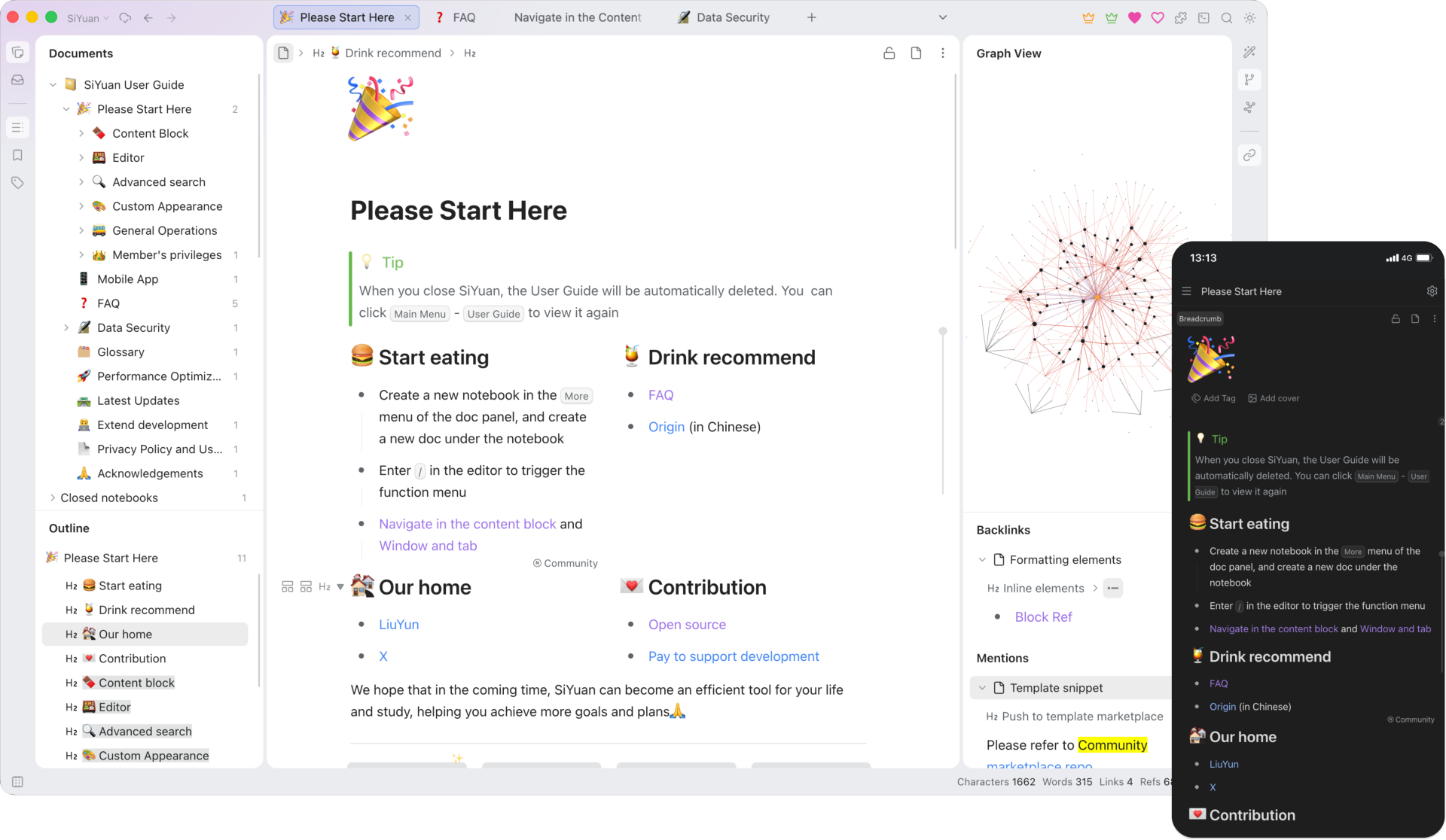
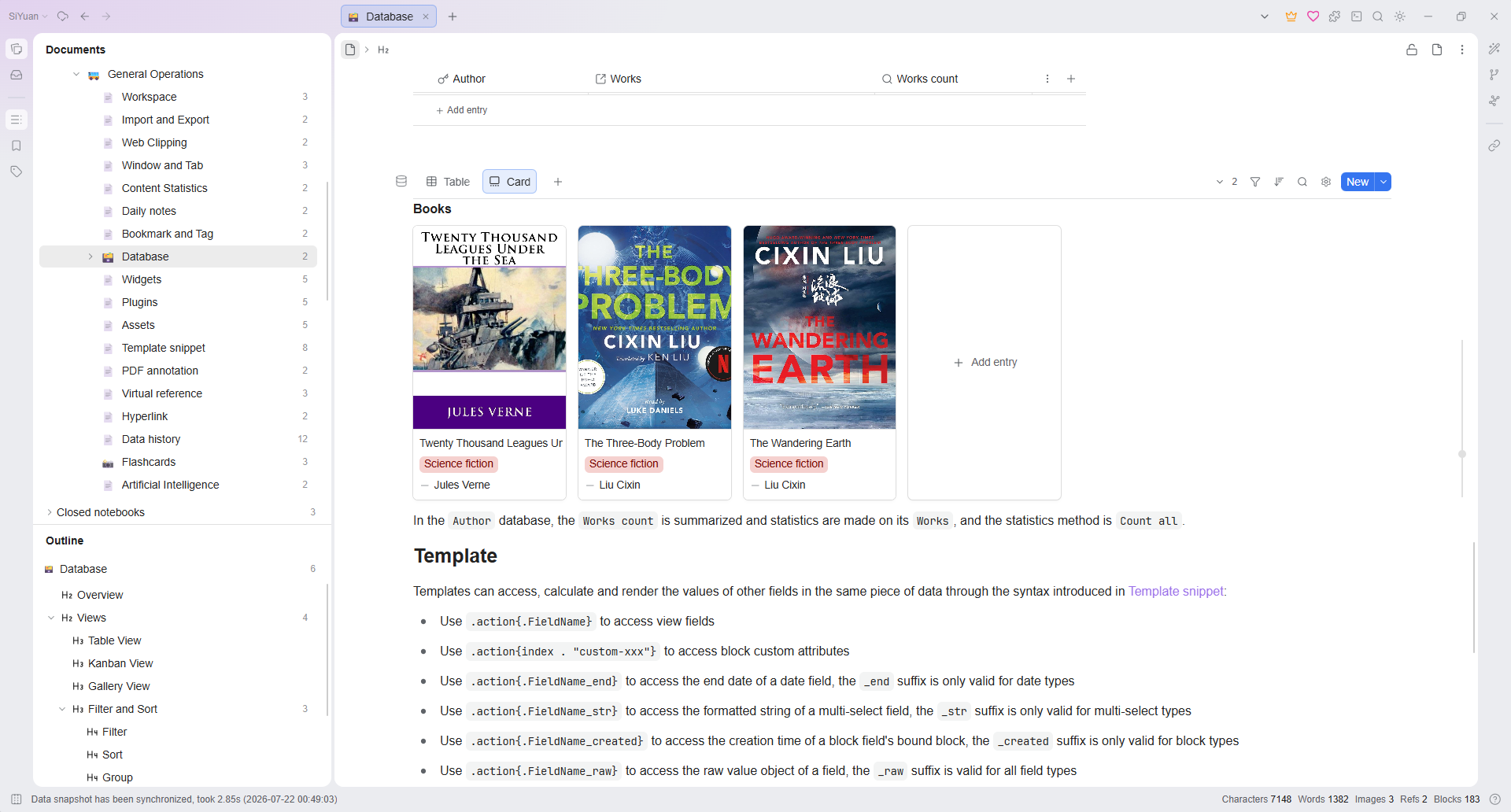
To learn more, read the online user guide or join the SiYuan English Discussion Forum.
🔮 Features
Most features are free, even for commercial use.
- Content block
- Block-level reference and two-way links
- Custom attributes
- SQL query embed
- Protocol
siyuan://
- Editor
- Block-style
- Markdown WYSIWYG
- List outline
- Block zoom-in
- Million-word large document editing
- Mathematical formulas, charts, flowcharts, Gantt charts, timing charts, staves, etc.
- Web clipping
- PDF Annotation link
- Export
- Block ref and embed
- Standard Markdown with assets
- PDF, Word and HTML
- Copy to WeChat MP, Zhihu and Yuque
- Database
- Table view
- Flashcard spaced repetition
- AI writing and Q/A chat via OpenAI API
- Tesseract OCR
- Multi-tab, drag and drop to split screen
- Template snippet
- JavaScript/CSS snippet
- Android/iOS/HarmonyOS App
- Docker deployment
- API
- Community marketplace
Some features are only available to paid members, for more details please refer to Pricing.
🏗️ Architecture and Ecosystem
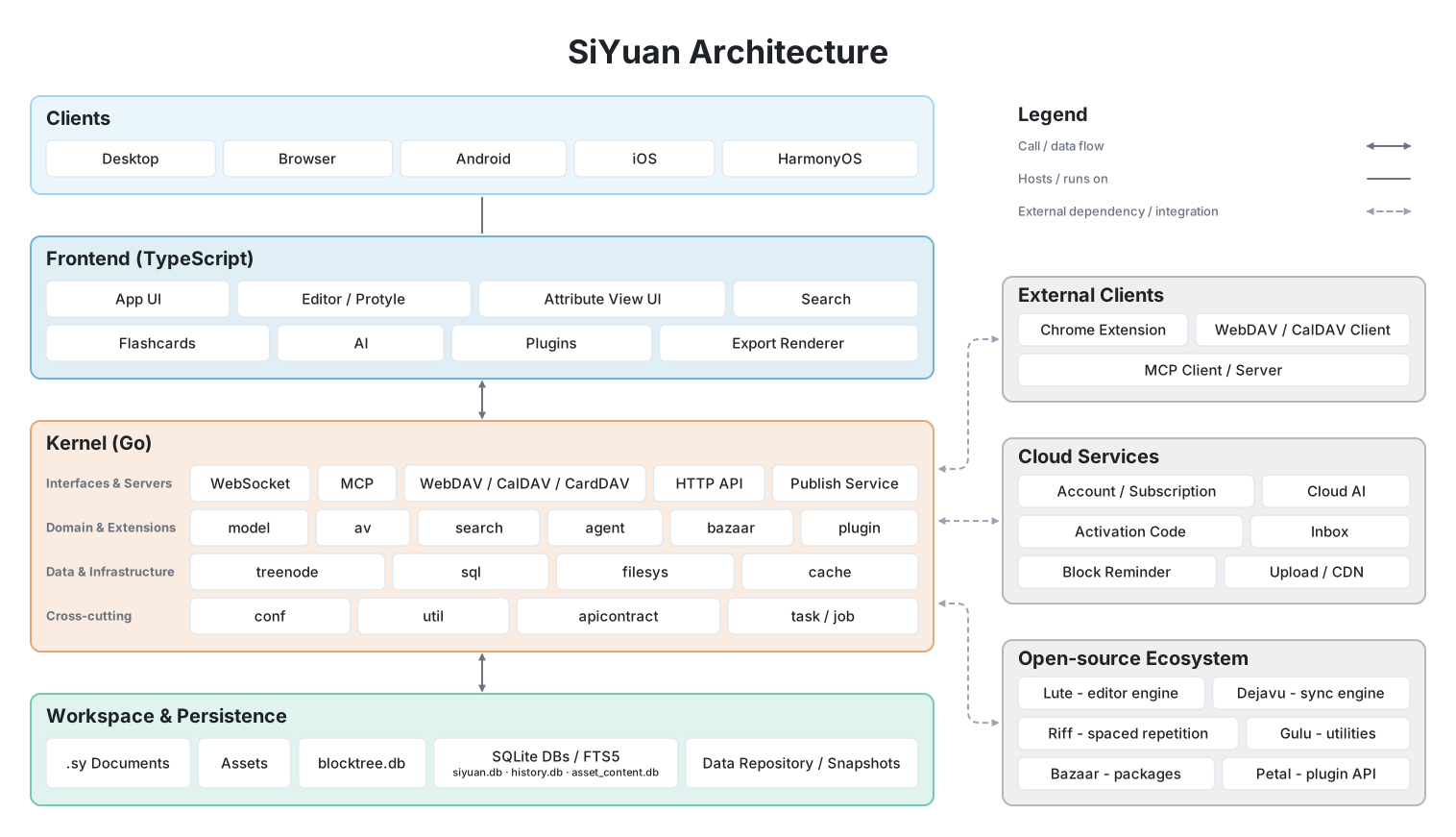
| Project | Description | Forks | Stars |
|---|---|---|---|
| lute | Editor engine |  |
 |
| chrome | Chrome/Edge extension |  |
 |
| bazaar | Community marketplace |  |
 |
| dejavu | Data repo |  |
 |
| petal | Plugin API |  |
 |
| android | Android App |  |
 |
| ios | iOS App |  |
 |
| harmony | HarmonyOS App |  |
 |
| riff | Spaced repetition |  |
 |
🗺️ Roadmap
🚀 Download Setup
It is recommended to give priority to installing through the application market on desktop and mobile, so that you can upgrade the version with one click in the future.
App Market
Mobile:
Desktop:
Installation Package
Package Manager
siyuan

siyuan-note

Docker Hosting
Docker Deployment
Overview
The easiest way to serve SiYuan on a server is to deploy it through Docker.
- Image name
b3log/siyuan - Image URL
File structure
The overall program is located under /opt/siyuan/, which is basically the structure under the resources folder of the Electron installation package:
- appearance: icon, theme, languages
- guide: user guide document
- stage: interface and static resources
- kernel: kernel program
Entrypoint
The entry point is set when building the Docker image: ENTRYPOINT ["/opt/siyuan/entrypoint.sh"]. This script allows changing the PUID and PGID of the user that will run inside the container. This is especially relevant to solve permission issues when mounting directories from the host. The PUID (User ID) and PGID (Group ID) can be passed as environment variables, making it easier to ensure correct permissions when accessing host-mounted directories.
Use the following parameters when running the container with docker run b3log/siyuan:
Note: Since v3.7.0, the
servesubcommand must be passed explicitly (e.g.docker run b3log/siyuan serve --workspace=...). Rundocker run --rm b3log/siyuan serve --helpto see all serving options.
--workspace: Specifies the workspace folder path, mounted to the container via-von the host--accessAuthCode: Specifies the lock screen password
More parameters can be found using --help. Here’s an example of a startup command with the new environment variables:
docker run -d \
  -v workspace_dir_host:workspace_dir_container \
  -p 6806:6806 \
  -e PUID=1001 -e PGID=1002 \
  b3log/siyuan \
  serve \
  --workspace=workspace_dir_container \
  --accessAuthCode=xxx
PUID: Custom user ID (optional, defaults to1000if not provided)PGID: Custom group ID (optional, defaults to1000if not provided)workspace_dir_host: The workspace folder path on the hostworkspace_dir_container: The path of the workspace folder in the container, as specified in--workspace- Alternatively, it's possible to set the path via the
SIYUAN_WORKSPACE_PATHenv variable. The commandline will always have the priority, if both are set
- Alternatively, it's possible to set the path via the
accessAuthCode: Lock screen password (please be sure to modify, otherwise anyone can access your data)- Alternatively, it's possible to set the lock screen password via the
SIYUAN_ACCESS_AUTH_CODEenv variable. The commandline will always have the priority, if both are set - To disable the lock screen password set the env variable
SIYUAN_ACCESS_AUTH_CODE_BYPASS=true
- Alternatively, it's possible to set the lock screen password via the
- OIDC can replace the lock screen password as the required Docker access authentication. Set
SIYUAN_OIDC_ENABLED=true,SIYUAN_OIDC_PROVIDER(custom,google,microsoft, orgithub),SIYUAN_OIDC_CLIENT_ID, and the provider-specific values below. GitHub uses its OAuth 2.0 user API adapter; the other providers use OpenID Connect discovery and ID Token validation. An invalid enabled configuration stops Docker startup when no lock screen password is availableSIYUAN_OIDC_ISSUER_URL: Issuer URL required by thecustomandmicrosoftproviders; Microsoft must use a tenant-specific issuer such ashttps://login.microsoftonline.com/<tenant-id>/v2.0SIYUAN_OIDC_CLIENT_SECRET: Optional client secret for OpenID Connect providers; required by the GitHub OAuth adapter. Every authorization-code flow also uses PKCESIYUAN_OIDC_SCOPES: Comma- or space-separated scopes;openidis always includedSIYUAN_OIDC_REDIRECT_URL: Public HTTPS callback URL ending in/api/system/oidc/callback, required for remote browser accessSIYUAN_OIDC_ALLOW_ALL: Explicitly grant SiYuan administrator access to every identity authenticated by the providerSIYUAN_OIDC_CLAIM_RULES: JSON array of claim rules used when allow-all is disabled, for example[{"claim":"email","operator":"equals","values":["user@example.com"]},{"claim":"email_verified","operator":"equals","values":["true"]}]; values within a rule use OR, while rules use AND- Native mobile apps use the fixed callback URI
siyuan:/oidc-callback; register it exactly as written. Mobile configuration verification uses this callback before saving. Custom providers, Microsoft, and GitHub can be used only when their application registration accepts this callback URI. Google does not accept this private-use URI for its Android client type, so Google login is limited to browser and desktop flows
SIYUAN_LANG: Interface language (optional, defaults toenif unset in Docker). Accepts BCP 47 tags likezh-CN/zh-TW/en/ja/pt-BR; legacy underscore values likezh_CN/en_USare also accepted for backward compatibility. Omit it if you want the language chosen in Settings to persist across restarts; if set, it is applied on every startup and overrides the saved setting- Alternatively, use the
--langcommand-line parameter. If both are set, the command-line takes priority
- Alternatively, use the
To simplify things, it is recommended to configure the workspace folder path to be consistent on the host and container, such as having both workspace_dir_host and workspace_dir_container configured as /siyuan/workspace. The corresponding startup command would be:
docker run -d \
  -v /siyuan/workspace:/siyuan/workspace \
  -p 6806:6806 \
  -e PUID=1001 -e PGID=1002 \
  b3log/siyuan \
  serve \
  --workspace=/siyuan/workspace/ \
  --accessAuthCode=xxx
Docker Compose
For users running SiYuan with Docker Compose, the environment variables PUID and PGID can be passed to customize the user and group IDs. Here's an example of a Docker Compose configuration:
version: "3.9"
services:
  main:
    image: b3log/siyuan
    command: ['serve', '--workspace=/siyuan/workspace/', '--accessAuthCode=${AuthCode}']
    ports:
      - 6806:6806
    volumes:
      - /siyuan/workspace:/siyuan/workspace
    restart: unless-stopped
    environment:
      - TZ=${YOUR_TIME_ZONE}    # A list of time zone identifiers can be found at https://en.wikipedia.org/wiki/List_of_tz_database_time_zones
      - PUID=${YOUR_USER_PUID}  # Customize user ID
      - PGID=${YOUR_USER_PGID}  # Customize group ID
In this setup:
PUIDandPGIDare set dynamically and passed to the container- If these variables are not provided, the default
1000will be used
By specifying PUID and PGID in the environment, you avoid the need to explicitly set the user directive (user: '1000:1000') in the compose file. The container will dynamically adjust the user and group based on these environment variables at startup.
User Permissions
In the image, the entrypoint.sh script ensures the creation of the siyuan user and group with the specified PUID and PGID. Therefore, when the host creates a workspace folder, pay attention to setting the user and group ownership of the folder to match the PUID and PGID you plan to use. For example:
chown -R 1001:1002 /siyuan/workspace
If you use custom PUID and PGID values, the entrypoint script will ensure that the correct user and group are created inside the container, and ownership of mounted volumes will be adjusted accordingly. There’s no need to manually pass -u in docker run or docker-compose as the environment variables will handle the customization.
Hidden port
Use an NGINX reverse proxy to hide port 6806. Please note:
- Configure the WebSocket reverse proxy for
/ws - Preserve the original
Hostheader, including the port, for both regular requests and/ws. In NGINX, configureproxy_set_header Host $http_host;in both proxy locations. Using$hostdrops non-standard ports (such as8443), which can cause Origin validation to fail, leaving the page stuck on the logo with repeated reloads, API responses of401, or failed WebSocket connections
Note
- Be sure to confirm the correctness of the mounted volume, otherwise the data will be lost after the container is deleted
- Do not use URL rewriting for redirection, otherwise there may be problems with authentication, it is recommended to configure a reverse proxy
- If you encounter permission issues, verify that the
PUIDandPGIDenvironment variables match the ownership of the mounted directories on your host system
Limitations
- Does not support desktop and mobile application connections, only supports use on browsers
- Export to PDF, HTML and Word formats is not supported
- Import Markdown file is not supported
Kubernetes Hosting
Kubernetes Deployment
The HelmForge SiYuan chart is community-maintained by HelmForge, uses the official b3log/siyuan image, and is not an official SiYuan chart. Please report chart issues to HelmForge.
Prepare Helm, kubectl, and a Kubernetes cluster with a default StorageClass that can provision a 10Gi ReadWriteOnce volume, then run the following commands:
helm repo add helmforge https://repo.helmforge.dev
helm repo update
helm install siyuan helmforge/siyuan --namespace siyuan --create-namespace --wait
kubectl -n siyuan get secret siyuan-siyuan-auth -o go-template='{{index .data "access-code" | base64decode}}{{"\n"}}'
kubectl -n siyuan port-forward service/siyuan-siyuan 6806:6806
Open http://localhost:6806 and enter the generated lock screen password. Keep this password secure; it is distinct from the API token. The names above assume the default chart values and release name siyuan.
For remote access, use a dedicated HTTPS hostname and an Ingress controller that proxies WebSockets on /ws, without URL rewriting. Configure ingress and allow the controller's namespace through networkPolicy.ingressFrom; the default policy allows same-namespace ingress and DNS egress only. Add explicit egress rules for cloud sync or other external services. See the chart guide and production example for TLS, existing Secrets, and storage configuration.
- One workspace, one writer: Never scale replicas or mount the same workspace in another running instance, even with ReadWriteMany storage. The chart uses
Recreate, so upgrades stop the old writer before starting the new one and cause downtime. - Persistence: The complete workspace is mounted at
/siyuan/workspace. The chart retains its generated PVC on uninstall by default; deleting the namespace or PVC can still destroy data. Reuse a retained or restored claim withpersistence.existingClaim. - Backups and upgrades: Gracefully stop the writer before backing up the complete workspace, or use an application-consistent backup procedure. A copy of the live SQLite index alone is insufficient. Securely preserve authentication Secrets, encryption keys, and encrypted-notebook recovery passwords, and test restores into a separate PVC. Back up before upgrades and review storage-format changes: Helm rollback does not undo data migrations.
The Docker hosting limitations also apply: browser use only, no desktop or mobile application connections, no PDF/HTML/Word export, and no Markdown file import.
Unraid Hosting
Unraid Deployment
Note: First run chown -R 1000:1000 /mnt/user/appdata/siyuan in the terminal
Template reference:
Web UI: 6806
Container Port: 6806
Container Path: /home/siyuan
Host path: /mnt/user/appdata/siyuan
PUID: 1000
PGID: 1000
Publish parameters: serve --accessAuthCode=******(Lock screen password)
TrueNAS Hosting
TrueNAS Deployment
Note: First, run the commands below in the TrueNAS Shell. Please update Pool_1/Apps_Data/siyuan to match your dataset path.
zfs create Pool_1/Apps_Data/siyuan
chown -R 1001:1002 /mnt/Pool_1/Apps_Data/siyuan
chmod 755 /mnt/Pool_1/Apps_Data/siyuan
Navigate to Apps - DiscoverApps - More Options (on top right, besides Custom App) - Install via YAML
Template reference:
services:
  siyuan:
    image: b3log/siyuan
    container_name: siyuan
    command: ['serve', '--workspace=/siyuan/workspace/', '--accessAuthCode=2222']
    ports:
      - 6806:6806
    volumes:
      - /mnt/Pool_1/Apps_Data/siyuan:/siyuan/workspace  # Adjust to your dataset path
    restart: unless-stopped
    environment:
      - TZ=America/New_York  # Replace with your timezone if needed
      - PUID=1001
      - PGID=1002
Test Channels
Select Beta or Alpha in Settings - About - Update channel to receive prereleases. Beta includes stable, RC, and Beta releases; Alpha includes all releases. Test channels require access to GitHub.
⌨️ Command-line Interface
The built-in CLI provides direct access to workspace data — no running server required.
Quick Start
# List all notebooks
siyuan notebook list -w ~/SiYuan

# Full-text search with JSON output
siyuan search "keyword" -w ~/SiYuan -f json

# Search inside asset files (PDF/Word/Excel/txt etc.)
siyuan search "phrase" --asset -w ~/SiYuan
siyuan search "phrase" --asset --ext pdf --ext docx -w ~/SiYuan

# Export a document as Markdown
siyuan export md --id <block-id> -w ~/SiYuan
Available Commands
| Category | Commands |
|---|---|
| Notebooks & Documents | notebook, document, dailynote — CRUD and daily notes |
| Content | block, attr, outline — block read/write, attributes, outline |
| Metadata | tag, bookmark, template — tags, bookmarks, template snippets |
| Queries | search, sql — full-text, semantic, asset-content, and SQL queries |
| References | ref — backlinks and mentions |
| Import/Export | export, import, inbox — Markdown, HTML, preview, Word, .sy.zip, Data, cloud inbox |
| Data Management | repo, history, sync — snapshots, versions, cloud sync |
| Utilities | asset, file — resources and file system |
| Database | database — attribute view management |
| Server | serve — start the kernel HTTP server |
| Workspace & System | workspace, system — list, inspect, system info |
Run siyuan --help for the full command tree. Use -f json (default is -f table) for script-friendly output. Most mutating commands also support --dry-run to preview changes without applying them.
Installation
The CLI binary is <install-dir>/resources/kernel/SiYuan-Kernel, invoked via the siyuan command.
Windows: the installer automatically adds the kernel directory to
PATH, sosiyuanworks out of the box. The Microsoft Store edition (3.8.7+) registers thesiyuan.exeapp execution alias on Windows 10 1607 (build 14393) or later. After installing or updating, open a new terminal and runsiyuan --helpsiyuan --help # Check which command is being used Get-Command siyuan -All where.exe siyuanIf the command is unavailable, check that the SiYuan app execution alias is enabled in Windows and
%LOCALAPPDATA%\Microsoft\WindowsAppsis inPATH. The commands above show command resolution; multiple SiYuan editions orPATHorder may select another executableIf you created the old
siyuan.cmdshim, first verify the Store alias directly with& "$env:LOCALAPPDATA\Microsoft\WindowsApps\siyuan.exe" --help, then optionally remove the shim:Remove-Item "$env:LOCALAPPDATA\Microsoft\WindowsApps\siyuan.cmd"macOS: create a symlink after installing:
ln -s /Applications/SiYuan.app/Contents/Resources/kernel/SiYuan-Kernel /usr/local/bin/siyuanLinux: create a symlink after installing:
ln -s <install-dir>/resources/kernel/SiYuan-Kernel /usr/local/bin/siyuan
🏘️ Community
🛠️ Development Guide
See Development Guide.
❓ FAQ
How does SiYuan store data?
The data is saved in the workspace data folder:
assetsis used to save all inserted assetsemojisis used to save emoji imagessnippetsis used to save code snippetsstorageis used to save query conditions, layouts and flashcards, etc.templatesis used to save template snippetswidgetsis used to save widgetspluginsis used to save pluginspublicis used to save public data- The rest of the folders are the notebook folders created by the user, files with the suffix of
.syin the notebook folder are used to save the document data, and the data format is JSON
Does it support data synchronization through a third-party sync disk?
Data synchronization through third-party synchronization disks is not supported, otherwise data may be corrupted.
Although it does not support third-party sync disks, it supports connecting with third-party cloud storage (Members' privileges).
Is SiYuan open source?
SiYuan is completely open source, and contributions are welcome:
For more details, please refer to Development Guide.
How to upgrade to a new version?
- If installed via app store, please update via app store
- If it is installed with the desktop installation package on Windows or macOS, you can enable the option of Settings - About - Automatically download update installation package, so that SiYuan will automatically download the latest version of the installation package and prompt to install
- If it is installed by manual installation package, please download the installation package again to install
You can Check update in Settings - About - Current Version, or pay attention to Official Download or GitHub Releases to get the new version.
What if some blocks (such as paragraph blocks in list items) cannot find the block icon?
The block icon is omitted for the first sub-block under the list item. You can move the cursor into this block and trigger its block menu with Ctrl+/ .
What should I do if the data repo key is lost?
If the data repo key is correctly initialized on multiple devices previously, the key is the same on all devices and can be retrieved in Settings - Account & Sync - Local Data Repo - Data repo key - Copy key string
If it has not been configured correctly before (for example, the keys on multiple devices are inconsistent) or all devices are unavailable and the key string cannot be obtained, you can reset the key by following the steps below:
- Manually back up the data, you can use Export Data or directly copy the workspace/data/ folder on the file system
- Settings - Account & Sync - Local Data Repo - Data repo key - Reset data repo
- Reinitialize the data repo key. After initializing the key on one device, other devices import the key
- The cloud uses the new synchronization directory, the old synchronization directory is no longer available and can be deleted
- The existing cloud snapshots are no longer available and can be deleted
Do I need to pay for it?
Most features are free, even for commercial use.
Member's privileges can only be used after payment, please refer to Pricing.
🙏 Acknowledgement
The birth of SiYuan is inseparable from many open source projects and contributors. Please refer to the project source code kernel/go.mod, app/package.json and project homepage.
The growth of SiYuan is inseparable from user feedback and promotion. Thank you, everyone, for your help with SiYuan ❤️
Contributors
Welcome to join us and contribute code to SiYuan together.
从思考到洞见,与智能体同行
目录
💡 简介
思源笔记是一款隐私优先的个人知识管理系统,支持细粒度块级引用和 Markdown 所见即所得。
如需了解更多,请阅读在线用户指南或前往思源笔记官方讨论区交流。
🔮 特性
大部分功能是免费的,即使是在商业环境下使用。
- 内容块
- 块级引用和双向链接
- 自定义属性
- SQL 查询嵌入
- 协议
siyuan://
- 编辑器
- Block 风格
- Markdown 所见即所得
- 列表大纲
- 块缩放聚焦
- 百万字大文档编辑
- 数学公式、图表、流程图、甘特图、时序图、五线谱等
- 网页剪藏
- PDF 标注双链
- 导出
- 块引用和嵌入块
- 带 assets 文件夹的标准 Markdown
- PDF、Word 和 HTML
- 复制到微信公众号、知乎和语雀
- 数据库
- 表格视图
- 闪卡间隔重复
- 连接 OpenAI 接口支持人工智能写作和问答聊天
- Tesseract OCR
- 模板片段
- JavaScript/CSS 代码片段
- Android/iOS/鸿蒙 App
- Docker 部署
- API
- 社区集市
部分功能需要付费会员才能使用,更多细节请参考定价。
🏗️ 架构和生态
| Project | Description | Forks | Stars |
|---|---|---|---|
| lute | 编辑器引擎 | |
|
| chrome | Chrome/Edge 扩展 | |
|
| bazaar | 社区集市 | |
|
| dejavu | 数据仓库 | |
|
| petal | 插件 API | |
|
| android | Android App | |
|
| ios | iOS App | |
|
| harmony | 鸿蒙 App | |
|
| riff | 间隔重复 | |
|
🗺️ 路线图
🚀 下载安装
桌面端和移动端建议优先考虑通过应用市场安装,这样以后升级版本时可以一键更新。
应用市场
移动端:
桌面端:
安装包
包管理器
siyuan
siyuan-note
Docker 部署
Docker 部署文档
概述
在服务器上伺服思源最简单的方案是通过 Docker 部署。
- 镜像名称
b3log/siyuan - 镜像地址
文件结构
整体程序位于 /opt/siyuan/ 下,基本上就是 Electron 安装包 resources 文件夹下的结构:
- appearance:图标、主题、多语言
- guide:帮助文档
- stage:界面和静态资源
- kernel:内核程序
启动入口
入口点在构建 Docker 镜像时设置:ENTRYPOINT ["/opt/siyuan/entrypoint.sh"]。该脚本允许更改将在容器内运行的用户的 PUID 和 PGID。这对于解决从主机挂载目录时的权限问题尤为重要。PUID 和 PGID 可以作为环境变量传递,这样在访问主机挂载的目录时就能更容易地确保正确的权限。
使用 docker run b3log/siyuan 运行容器时,请指定以下参数:
--workspace:指定工作空间文件夹路径,在宿主机上通过-v挂载到容器中--accessAuthCode:指定锁屏密码
注意: 自 v3.7.0 起,必须显式传入
serve子命令(例如docker run b3log/siyuan serve --workspace=...)。运行docker run --rm b3log/siyuan serve --help可查看全部伺服参数。
更多的参数可参考 --help。下面是一条启动命令示例:
docker run -d \
  -v workspace_dir_host:workspace_dir_container \
  -p 6806:6806 \
  -e PUID=1001 -e PGID=1002 \
  -e SIYUAN_LANG=zh-CN \
  b3log/siyuan \
  serve \
  --workspace=workspace_dir_container \
  --accessAuthCode=xxx
PUID: 自定义用户 ID(可选,如果未提供,默认为1000)PGID: 自定义组 ID(可选,如果未提供,默认为1000)workspace_dir_host:宿主机上的工作空间文件夹路径workspace_dir_container:容器内工作空间文件夹路径,和后面--workspace指定成一样的- 另外,也可以通过
SIYUAN_WORKSPACE_PATH环境变量设置路径。如果两者都设置了,命令行的值将优先
- 另外,也可以通过
accessAuthCode:锁屏密码,请务必修改,否则任何人都可以读写你的数据- 另外,也可以通过
SIYUAN_ACCESS_AUTH_CODE环境变量设置锁屏密码。如果两者都设置了,命令行的值将优先 - 可通过设置环境变量
SIYUAN_ACCESS_AUTH_CODE_BYPASS=true禁用锁屏密码
- 另外,也可以通过
- OIDC 可替代锁屏密码作为 Docker 访问鉴权。设置
SIYUAN_OIDC_ENABLED=true、SIYUAN_OIDC_PROVIDER(custom、google、microsoft或github)、SIYUAN_OIDC_CLIENT_ID以及下方的提供商相关配置。GitHub 使用其 OAuth 2.0 用户 API 适配器;其余提供商使用 OpenID Connect 发现与 ID Token 校验。在已启用 OIDC 且配置无效、又没有锁屏密码可用时,Docker 启动会直接终止SIYUAN_OIDC_ISSUER_URL:custom和microsoft提供商所需的 Issuer URL;Microsoft 必须使用租户专属的 issuer,例如https://login.microsoftonline.com/<tenant-id>/v2.0SIYUAN_OIDC_CLIENT_SECRET:OpenID Connect 提供商可选的客户端密钥;GitHub OAuth 适配器必须提供。所有授权码流程均使用 PKCESIYUAN_OIDC_SCOPES:逗号或空格分隔的 scopes;始终包含openidSIYUAN_OIDC_REDIRECT_URL:以/api/system/oidc/callback结尾的公网 HTTPS 回调 URL,远程浏览器访问时必填SIYUAN_OIDC_ALLOW_ALL:明确授予提供商认证的所有身份 SiYuan 管理员权限SIYUAN_OIDC_CLAIM_RULES:禁用 allow-all 时使用的声明规则 JSON 数组,例如[{"claim":"email","operator":"equals","values":["user@example.com"]},{"claim":"email_verified","operator":"equals","values":["true"]}];规则内取值为 OR,规则之间为 AND- 原生移动应用使用固定的回调 URI
siyuan:/oidc-callback;请按原样注册。移动端配置在保存前会使用该回调进行校验。自定义提供商、Microsoft 和 GitHub 仅在其应用注册接受该回调 URI 时可用;Google 的 Android 客户端类型不接受该私有 URI,因此 Google 登录仅限浏览器和桌面端流程
SIYUAN_LANG:界面语言(可选,Docker 下未设置时默认为en)。接受 BCP 47 标签如zh-CN/zh-TW/en/ja/pt-BR;旧下划线值如zh_CN/en_US也兼容。若希望设置中选择的语言在重启后仍生效,部署时请去掉该变量;若设置了,每次启动都会应用该值并覆盖已保存的语言设置- 也可通过
--lang命令行参数设置。如果两者都设置了,命令行的值将优先
- 也可通过
为了简化,建议将 workspace 文件夹路径在宿主机和容器上配置为一致的,比如将 workspace_dir_host 和 workspace_dir_container 都配置为 /siyuan/workspace,对应的启动命令示例:
docker run -d \
  -v /siyuan/workspace:/siyuan/workspace \
  -p 6806:6806 \
  -e PUID=1001 -e PGID=1002 \
  -e SIYUAN_LANG=zh-CN \
  b3log/siyuan \
  serve \
  --workspace=/siyuan/workspace/ \
  --accessAuthCode=xxx
Docker Compose
对于使用 Docker Compose 运行思源的用户,可以通过环境变量 PUID 和 PGID 来自定义用户和组的 ID。下面是一个 Docker Compose 配置示例:
version: "3.9"
services:
  main:
    image: b3log/siyuan
    command: ['serve', '--workspace=/siyuan/workspace/', '--accessAuthCode=${AuthCode}']
    ports:
      - 6806:6806
    volumes:
      - /siyuan/workspace:/siyuan/workspace
    restart: unless-stopped
    environment:
      - TZ=${YOUR_TIME_ZONE}    # 时区标识符列表见 https://en.wikipedia.org/wiki/List_of_tz_database_time_zones
      - PUID=${YOUR_USER_PUID}  # 自定义用户 ID
      - PGID=${YOUR_USER_PGID}  # 自定义组 ID
      - SIYUAN_LANG=zh-CN       # 界面语言(与本文档一致)
在此设置中:
- PUID “和 ”PGID "是动态设置并传递给容器的
- 如果没有提供这些变量,则使用默认的
1000
在环境中指定 PUID 和 PGID 后,就无需在 compose 文件中明确设置 user 指令(user: '1000:1000')。容器将在启动时根据这些环境变量动态调整用户和组。
用户权限
在镜像中,“entrypoint.sh ”脚本确保以指定的 “PUID ”和 “PGID ”创建 “siyuan ”用户和组。因此,当主机创建工作区文件夹时,请注意设置文件夹的用户和组所有权,使其与计划使用的 PUID 和 PGID 匹配。例如
chown -R 1001:1002 /siyuan/workspace
如果使用自定义的 PUID 和 PGID 值,入口点脚本将确保在容器内创建正确的用户和组,并相应调整挂载卷的所有权。无需在 docker run 或 docker-compose 中手动传递 -u,因为环境变量会处理自定义。
隐藏端口
使用 NGINX 反向代理可以隐藏 6806 端口,请注意:
- 配置 WebSocket 反代
/ws - 普通请求和
/ws的反向代理都需要保留原始Host请求头及端口,在 NGINX 的两处代理配置中均设置proxy_set_header Host $http_host;。使用$host会丢失非标准端口(如8443),可能导致来源校验失败,表现为登录后停留在 LOGO 并反复刷新、接口返回401或 WebSocket 连接失败
注意
- 请务必确认挂载卷的正确性,否则容器删除后数据会丢失
- 不要使用 URL 重写进行重定向,否则鉴权可能会有问题,建议配置反向代理
限制
- 不支持桌面端和移动端应用连接,仅支持在浏览器上使用
- 不支持导出 PDF、HTML 和 Word 格式
- 不支持导入 Markdown 文件
Kubernetes 部署
Kubernetes 部署文档
HelmForge 思源 Chart 由 HelmForge 社区维护,使用官方 b3log/siyuan 镜像,并非思源官方 Chart。Chart 相关问题请反馈至 HelmForge。
准备好 Helm、kubectl,以及默认 StorageClass 能够动态创建 10Gi ReadWriteOnce 存储卷的 Kubernetes 集群后,执行以下命令:
helm repo add helmforge https://repo.helmforge.dev
helm repo update
helm install siyuan helmforge/siyuan --namespace siyuan --create-namespace --wait
kubectl -n siyuan get secret siyuan-siyuan-auth -o go-template='{{index .data "access-code" | base64decode}}{{"\n"}}'
kubectl -n siyuan port-forward service/siyuan-siyuan 6806:6806
打开 http://localhost:6806,输入生成的锁屏密码。请妥善保管该密码;它与 API Token 不同。以上资源名称以 Chart 默认配置和 Helm 实例名称 siyuan 为前提。
远程访问时,请使用独立的 HTTPS 域名,以及支持代理 /ws WebSocket 连接的 Ingress 控制器,不要进行 URL 重写。配置 ingress,并通过 networkPolicy.ingressFrom 允许控制器所在命名空间的流量;默认策略仅允许同命名空间的入站流量和 DNS 出站流量。云端同步等外部服务需要显式配置出站规则。TLS、现有 Secret 和存储配置请参阅 Chart 指南及生产环境示例。
- 一个工作区只能有一个写入实例: 不要增加副本数,也不要将同一工作区挂载到另一个运行中的实例,即使使用 ReadWriteMany 存储也不例外。Chart 使用
Recreate策略,升级时会先停止旧实例,再启动新实例,因此会有服务中断。 - 持久化: 完整工作区挂载在
/siyuan/workspace。默认情况下,卸载 Chart 会保留其创建的 PVC,但删除命名空间或 PVC 仍可能导致数据丢失。可通过persistence.existingClaim复用保留或恢复后的存储卷声明。 - 备份与升级: 备份完整工作区前,请正常停止写入实例,或使用能够保证应用一致性的备份流程。仅复制运行中的 SQLite 索引文件无法保证备份完整且一致。请妥善保管保存锁屏密码的 Secret、加密密钥和加密笔记本恢复密码,并在独立 PVC 上测试恢复。升级前先备份,并确认新版本是否涉及存储格式变更:Helm 回滚不会撤销数据迁移。
Docker 部署的限制同样适用:仅支持浏览器访问,不支持桌面端和移动端应用连接,不支持导出 PDF、HTML 和 Word 格式,也不支持导入 Markdown 文件。
Unraid 部署
Unraid 部署文档
注意:首先终端运行 chown -R 1000:1000 /mnt/user/appdata/siyuan
模板参考:
Web UI: 6806
Container Port: 6806
Container Path: /home/siyuan
Host path: /mnt/user/appdata/siyuan
PUID: 1000
PGID: 1000
SIYUAN_LANG: zh-CN
Publish parameters: serve --accessAuthCode=******(锁屏密码)
TrueNAS 部署
TrueNAS 部署文档
注意:首先在 TrueNAS Shell 中运行下面的命令。请将 Pool_1/Apps_Data/siyuan 更新为与你的应用数据集对应的路径。
zfs create Pool_1/Apps_Data/siyuan
chown -R 1001:1002 /mnt/Pool_1/Apps_Data/siyuan
chmod 755 /mnt/Pool_1/Apps_Data/siyuan
进入 Apps - DiscoverApps - More Options(右上,除 Custom App 外)- 通过 YAML 安装
模板参考:
services:
  siyuan:
    image: b3log/siyuan
    container_name: siyuan
    command: ['serve', '--workspace=/siyuan/workspace/', '--accessAuthCode=2222']
    ports:
      - 6806:6806
    volumes:
      - /mnt/Pool_1/Apps_Data/siyuan:/siyuan/workspace  # Adjust to your dataset path
    restart: unless-stopped
    environment:
      - TZ=Asia/Shanghai  # 按需替换为你的时区
      - PUID=1001
      - PGID=1002
      - SIYUAN_LANG=zh-CN
宝塔面板部署
宝塔面板 部署文档
前提
- 仅适用于宝塔面板9.2.0及以上版本
- 安装宝塔面板,前往宝塔面板官网,选择正式版的脚本下载安装
部署
- 登录宝塔面板,在左侧菜单栏中点击
Docker - 首次会提示安装
Docker和Docker Compose服务,点击立即安装,若已安装请忽略 - 安装完成后在
Docker-应用商店-实用工具中找到思源笔记,点击安装,也可以在搜索框直接搜索 - 设置域名等基本信息,点击
确定- 名称:应用名称,默认
siyuan_随机字符 - 版本选择:默认
latest - 域名:如你需要通过域名访问,请在此处填写你的域名
- 允许外部访问:如你需通过
IP+Port直接访问,请勾选,如你已经设置了域名,请不要勾选此处 - 端口:默认
6806,可自行修改 - 锁屏密码:默认随机生成
- 内存限制:0为不限制,根据实际需要设置
- 名称:应用名称,默认
- 提交后面板会自动进行应用初始化,大概需要
1-3分钟,初始化完成后即可访问
访问思源笔记
- 如果你填写了域名,请在浏览器输入域名访问
- 如你选择了
IP+端口,请在浏览器地输入http://<宝塔面板IP>:6806访问
小皮面板部署
小皮面板 部署文档
前提
- 需要安装小皮面板,前往小皮面板,选择对应的脚本执行安装
部署
- 登录小皮面板后,点击左侧菜单的 Docker
- 首次打开会提示安装 Docker,点击 点击安装 Docker
- 按照提示安装 Docker
- 点击 应用商店,找到 思源笔记,点击 安装 -> 立即安装
- 等待安装结束后,可在 任务队列 界面的 已结束 中点击 详情 查看安装信息
访问思源笔记
- 在浏览器输入
http://<小皮面板机器IP>:6806访问
1Panel 面板部署
1Panel面板 部署文档
前提
- 仅适用于1Panel面板v1.10.32-lts及以上版本
- 安装1Panel面板,前往1Panel官网,选择正式版安装脚本下载安装
部署
登录1Panel面板,在左侧菜单栏中点击
应用商店在
应用商店-实用工具中找到思源笔记,点击安装,也可以在搜索框直接搜索配置锁屏密码等基本信息,点击
确定- 名称:应用名称,默认
siyuan - 版本:默认最新发行版
- 端口:默认
6806 - 锁屏密码:访问笔记时需要使用的
锁屏密码 - 端口外部访问:如你需通过
IP+Port直接访问,请勾选,同时会开放服务器防火墙端口 - CPU限制:默认为0,不限制,可根据实际需要设置
- 内存限制:默认为0,不限制,可根据实际需要设置
- 名称:应用名称,默认
提交后面板会自动进行应用安装启动,应用状态会变为
安装中,大概需要1-3分钟,耐心等待安装完成当应用状态变为
已启动后,点击左侧的网站,首次使用需要安装OpenResty,点击安装安装完成后,点击
网站菜单栏左上角创建,在弹出的页面中选择反向代理在
主域名填入你的域名,网站代号会自动生成,代理选择http,代理地址填写127.0.0.1:6806,点击确定(可选) 配置你创建的网站,可根据需要配置
https访问增强访问安全性
访问思源笔记
- 如果你通过
OpenResty反向代理反代了网站,并且填写了域名,请在浏览器输入域名访问 - 如你选择了
端口外部访问,请在浏览器地输入http://<1Panel面板IP>:6806访问
测试通道
可在设置 - 关于 - 更新通道中选择 Beta 或 Alpha 以接收预发布版本。Beta 通道接收正式版、RC 和 Beta,Alpha 通道接收全部版本。测试通道需要能够访问 GitHub。
⌨️ 命令行接口
内置 CLI,直接访问工作空间数据,无需启动内核服务。
快速开始
# 列出所有笔记本
siyuan notebook list -w ~/SiYuan

# 全文搜索(JSON 输出)
siyuan search "关键词" -w ~/SiYuan -f json

# 搜索资源文件内容(PDF/Word/Excel/txt 等)
siyuan search "关键词" --asset -w ~/SiYuan
siyuan search "关键词" --asset --ext pdf --ext docx -w ~/SiYuan

# 导出文档为 Markdown
siyuan export md --id <block-id> -w ~/SiYuan
可用命令
| 分类 | 命令 |
|---|---|
| 笔记本与文档 | notebook、document、dailynote — 增删改查、每日笔记 |
| 内容 | block、attr、outline — 块读写、自定义属性、大纲 |
| 元数据 | tag、bookmark、template — 标签、书签、模板片段 |
| 查询 | search、sql — 全文、语义、资源文件内容、SQL 查询 |
| 引用 | ref — 反向链接和提及 |
| 导入导出 | export、import、inbox — Markdown、HTML、preview、Word、.sy.zip、Data、云端收集箱 |
| 数据管理 | repo、history、sync — 快照、历史、云端同步 |
| 工具 | asset、file — 资源与文件系统 |
| 数据库 | database — 属性视图管理 |
| 伺服 | serve — 启动内核 HTTP 服务 |
| 工作空间与系统 | workspace、system — 列出、查看、系统信息 |
运行 siyuan --help 查看完整命令树。使用 -f json(默认 -f table)获得适合脚本处理的输出。大多数写命令还支持 --dry-run,可预览将要发生的改动而不实际执行。
安装
CLI 可执行文件为 <安装目录>/resources/kernel/SiYuan-Kernel,可通过 siyuan 命令调用。
Windows:安装程序自动将内核目录加入
PATH,可直接使用siyuan。微软商店版(3.8.7 及以上)在 Windows 10 1607(内部版本 14393)及以上系统中注册siyuan.exe应用执行别名。安装或更新后,打开新的终端并运行siyuan --helpsiyuan --help # 检查实际使用的命令 Get-Command siyuan -All where.exe siyuan如果找不到命令,请检查 Windows 中思源的应用执行别名是否已启用,以及
%LOCALAPPDATA%\Microsoft\WindowsApps是否在PATH中。上述命令可检查命令解析结果;同时安装多个思源版本或PATH顺序可能导致调用其他可执行文件如果曾创建旧的
siyuan.cmd转发器,请先运行& "$env:LOCALAPPDATA\Microsoft\WindowsApps\siyuan.exe" --help确认商店版别名可用,再按需删除转发器:Remove-Item "$env:LOCALAPPDATA\Microsoft\WindowsApps\siyuan.cmd"macOS:安装后创建软链接:
ln -s /Applications/SiYuan.app/Contents/Resources/kernel/SiYuan-Kernel /usr/local/bin/siyuanLinux:安装后创建软链接:
ln -s <安装目录>/resources/kernel/SiYuan-Kernel /usr/local/bin/siyuan
🏘️ 社区
🛠️ 开发指南
见:开发指南。
❓ 常见问题和解答
思源是如何存储数据的?
数据保存在工作空间 data 文件夹下:
assets用于保存所有插入的资源文件emojis用于保存自定义图标表情图片snippets用于保存代码片段storage用于保存查询条件、布局和闪卡数据等templates用于保存模板片段widgets用于保存挂件plugins用于保存插件public用于保存公开的数据- 其余文件夹就是用户自己创建的笔记本文件夹,笔记本文件夹下
.sy后缀的文件用于保存文档数据,数据格式为 JSON
支持通过第三方同步盘进行数据同步吗?
不支持通过第三方同步盘进行数据同步,否则可能会导致数据损坏。
虽然不支持第三方同步盘,但是支持连接第三方云端存储(会员特权)。
思源是开源的吗?
思源笔记是完全开源的,欢迎参与贡献:
更多细节请参考开发指南。
如何升级到新版本?
- 如果是通过应用商店安装的,请通过应用商店更新
- 如果是 Windows 或 macOS 桌面端通过安装包安装的,可打开 设置 - 关于 - 自动下载更新安装包 选项,这样思源会自动下载最新版安装包并提示安装
- 如果是通过手动安装包安装的,请再次下载安装包安装
可在 设置 - 关于 - 当前版本 中 检查更新,也可以通过关注官方下载或者 GitHub Releases 来获取新版本。
注意:切勿将工作空间放置于安装目录下,因为更新版本会清空安装目录下的所有文件
有的块(比如在列表项中的段落块)找不到块标怎么办?
在列表项下的第一个子块是省略块标的。可以将光标移到这个块中,然后通过 Ctrl+/ 触发它的块标菜单。
数据仓库密钥遗失怎么办?
如果之前在多个设备上正确初始化过数据仓库密钥的话,那么该密钥在所有设备上都是相同的,可以在 设置 - 账号与同步 - 本地数据仓库 - 数据仓库密钥 - 复制密钥字符串 找回
如果之前没有正确配置(比如多个设备上密钥不一致)或者所有设备均不可用,已经无法获得密钥字符串,则可通过如下步骤重置密钥:
- 手动备份好数据,可通过 导出 Data 或者直接在文件系统上复制 工作空间/data/ 文件夹
- 设置 - 账号与同步 - 本地数据仓库 - 数据仓库密钥 - 重置数据仓库
- 重新初始化数据仓库密钥,在一台设备上初始化密钥以后,其他设备导入密钥
- 云端使用新的同步目录,旧的同步目录已经无法使用,可以删除
- 已有的云端快照已经无法使用,可以删除
使用需要付费吗?
大部分功能是免费的,即使是在商业环境下使用。
会员特权需要付费后才能使用,请参考定价。
如果你没有会员特权需求但又想支持开发,欢迎进行捐赠:靠爱发电 - 链滴
🙏 鸣谢
思源的诞生离不开众多的开源项目和贡献者,请参考项目源代码 kernel/go.mod、app/package.json 和项目首页。
思源的成长离不开用户的反馈和宣传推广,感谢所有人对思源的帮助 ❤️
贡献者列表
欢迎加入我们,一起为思源贡献代码。